
Burly v1.6.0: Dark Mode, VoiceOver, and Help Built In
Burly 1.6.0 lets you choose System, Light, or Dark, and the picker, Settings, and the welcome window all follow. It works with VoiceOver from the moment a link arrives, puts a Help pane in Settings, and now runs on macOS 13 Ventura. How the link router sends each link to a browser profile is unchanged.
By Matt Senter, who builds Burly · · 4 min read
Matt Senter is an independent Mac developer who designs, builds, and ships small native apps end to end. He built Burly to send every link on his own Mac to the right browser profile, including Safari profiles that other routers cannot reach, and he writes these pages from that first-hand use.
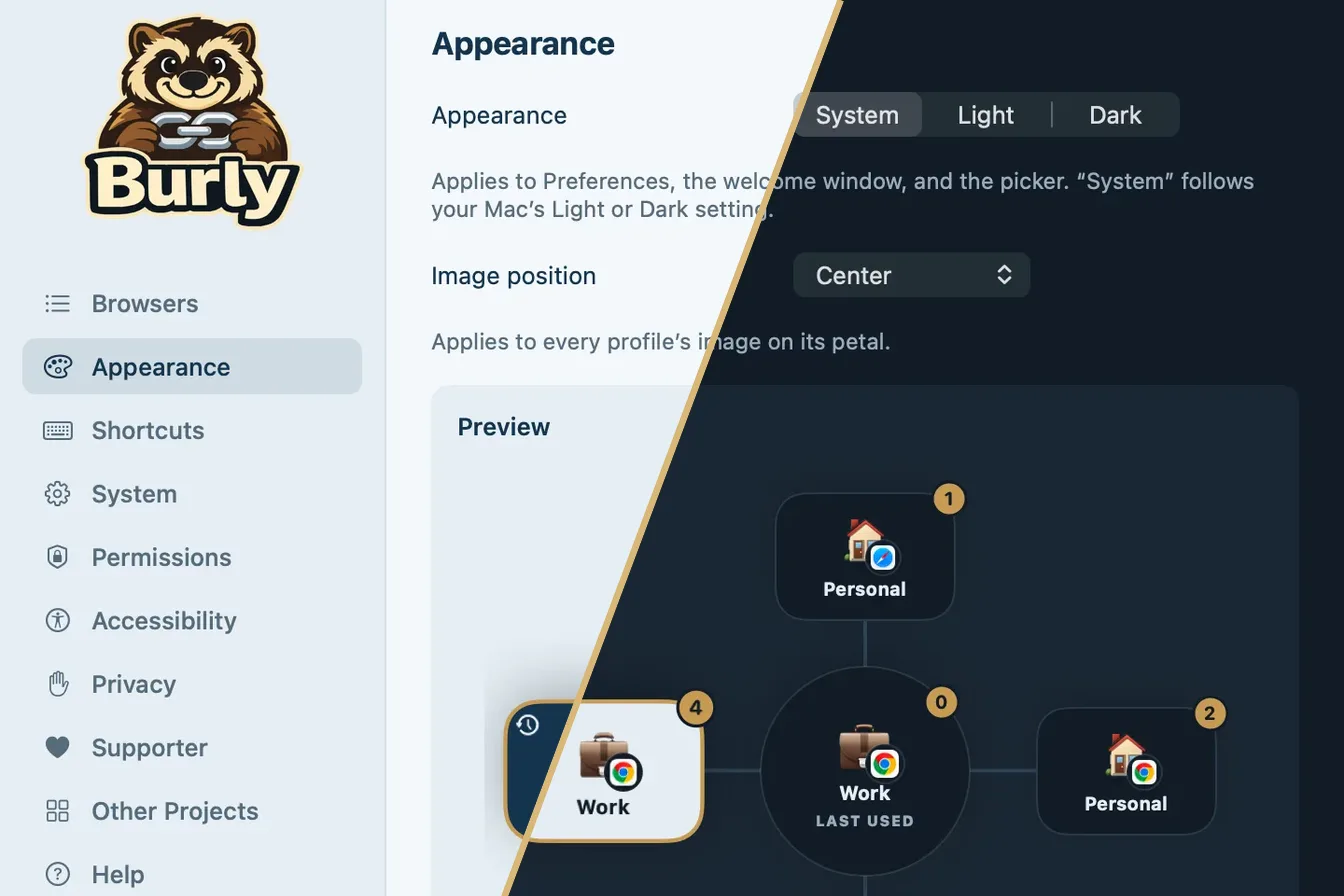
The last release taught Burly nine languages. This one is for everyone who uses a Mac a little differently: in Dark Mode at night, with VoiceOver, or with a question and no idea where to look. None of it changes where your links go. All of it changes what Burly is like to live with.
Does Burly have a dark mode?
Yes. Settings has a new Appearance pane with three choices: System, Light, and Dark. System is the default and follows your Mac, so when macOS switches to Dark Mode in the evening, Burly switches with it.
Until now the picker was always light. A bright white flower blooming over a dark desktop at 11 p.m. is the kind of thing you notice every single time, so the picker follows the setting too, along with Settings and the welcome window. Every petal color has its own hand-picked deep shade for Dark, so a profile you tinted green is still green, just quieter.
The bottom of the pane shows a live preview of the picker with a few sample profiles, and Image position moved over from Browsers to sit right above it. Change where an emoji or account photo sits on its petal and you see it move before your next click.
Does Burly work with VoiceOver?
It does now, all the way through. When a link arrives, VoiceOver moves into the picker and announces that you are choosing where to open it, along with the site, so you know why something just appeared under your cursor.
Each petal is a real button that reads its profile, its key, and whether it was the one you used last. The picker reads in a fixed order, the center first and then the petals clockwise, and VoiceOver focus follows your keyboard selection, so you can press a profile key and hear where you landed. Escape closes it.
Settings and the first-run setup got the same treatment. Switches and menus are named after their visible labels, each profile row says which profile it controls, colors and emoji are labeled, and you can reorder profiles with Move Up and Move Down instead of dragging. Things that used to happen silently, like a hotkey waiting for you to press a key, are announced.
If you use VoiceOver and something in Burly still reads wrong, I want to know. Get in touch and tell me where.
Where do you find help in Burly?
In Burly itself. Settings has a new Help pane, just above About. It walks through the setup steps with buttons that jump to the right pane, keeps a cheat sheet for the picker that matches your own bypass modifier, Invert, What to open, and hotkey prefix, and answers the questions I get most. Run Setup Again reopens the welcome window without resetting anything.
The Help guide on this site grew from 8 topics to 26, organized into sections, with screenshots of the real app in your language, in Light or Dark to match your Mac.
What does Burly connect to?
One thing. The new Privacy pane lists every connection Burly makes on its own, and the list is short: checking for and downloading updates, only when Keep Burly up to date is on or when you choose Check for Updates. The links you click never leave your Mac, and the Supporter license is checked offline. The Privacy Policy has the long version.
Next to it, a new About pane shows your version with a Copy Version Info button for support requests, your update status, and links to this site.
What else is in 1.6.0?
Burly now runs on macOS 13 Ventura. The menu bar menu has an icon on every item and each browser’s own icon under Open New Tab in. Settings stays open when you switch to another app, uses native macOS switches, and has a Share Burly button at the bottom of its sidebar. And if you hid the menu bar icon, opening Burly again from your Applications folder now brings up Settings. The full list, for this release and every earlier one, is in the release notes.
To get 1.6.0, click the Burly menu bar icon and choose Check for Updates, or download the latest build from this site. Your profiles, hotkeys, and settings carry over unchanged.
Try Burly free
Route every link to the right browser profile in seconds. Native, private, and free. No account required.
Download for macOS