Features
Everything Burly does, for every browser profile on your Mac.
Burly sits quietly in your menu bar and steps in only when a link needs a home. Here's everything it does.
If you are still sizing up the category rather than the app, start with what a macOS browser picker is. If the job is specifically sending links into a named Safari profile, the Safari profile switcher page is the shorter path.
Profiles are the destination
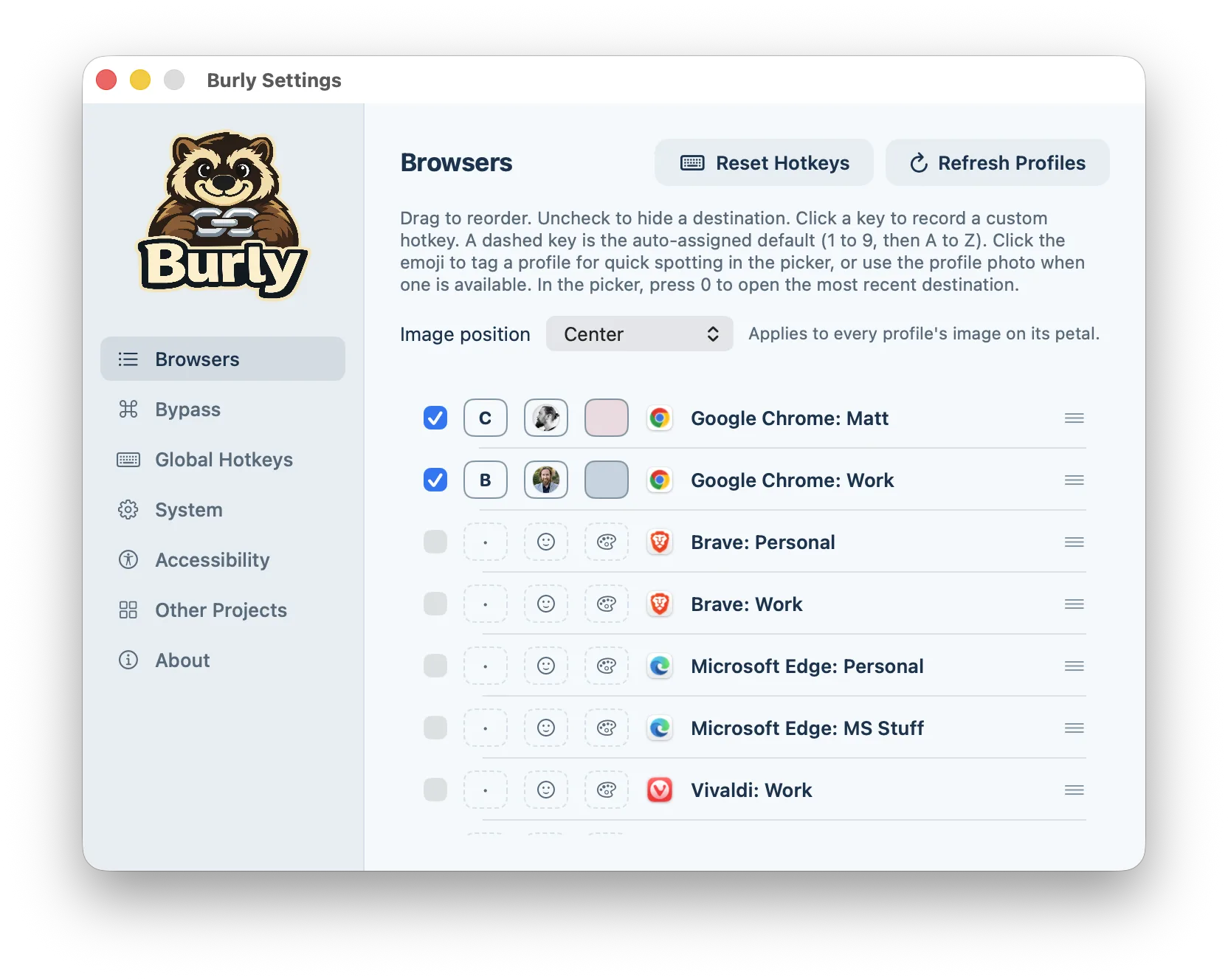
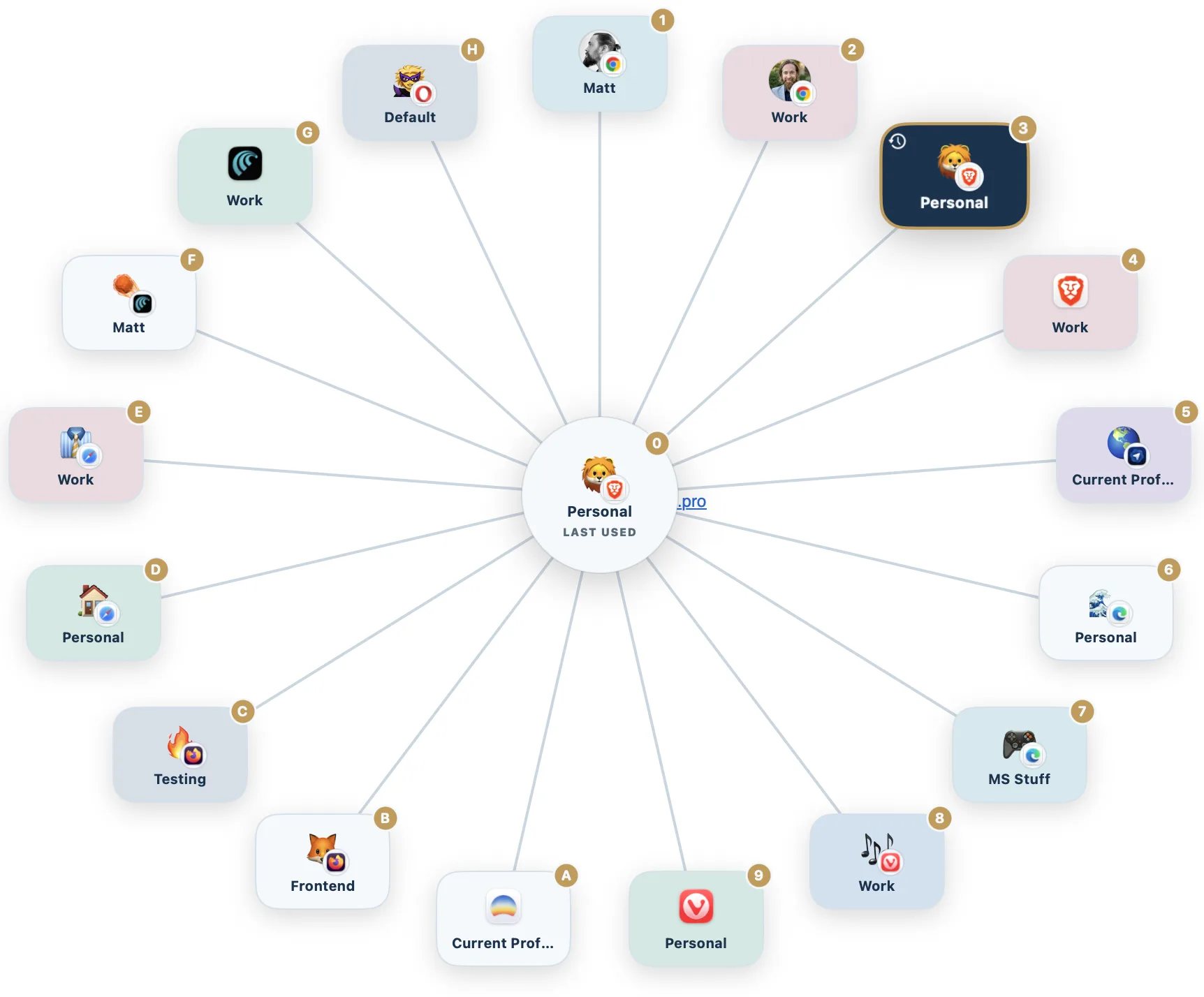
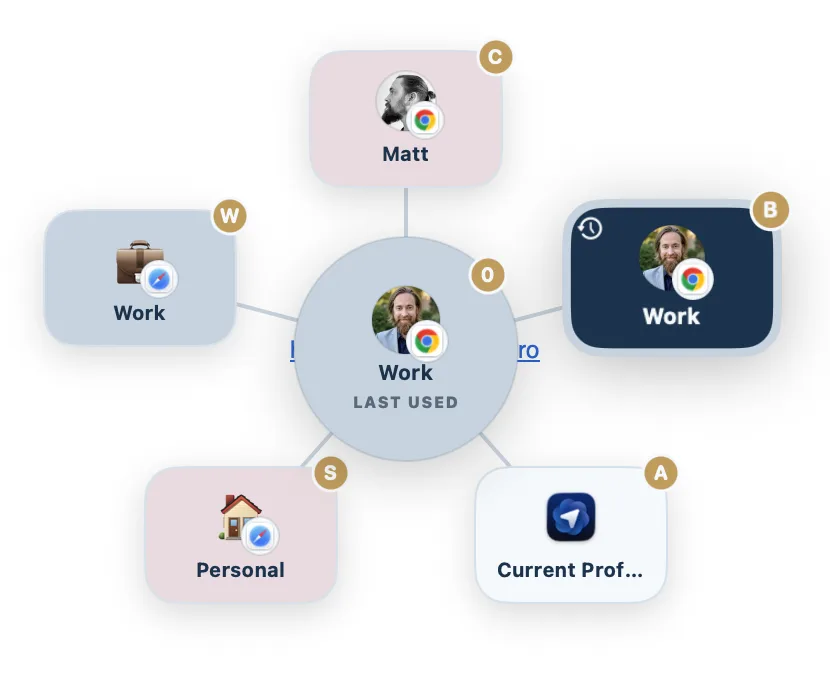
Most link routers stop at the browser: they can send a URL to Chrome, but not to the work profile inside Chrome. Burly treats the profile as the thing you choose. Open Settings and every profile is a row you can reorder, hide, or dress up with an emoji or account photo, a petal color, and its own shortcut key, so the picker becomes a board of faces you recognize at a glance. A typical weekday looks like this: a calendar invite from work Mail goes to the Work profile, a shopping receipt from personal Messages goes to Personal, and a docs link from a side-project Slack lands in the Dev profile, with no copy-paste between windows.
A picker that blooms under your cursor
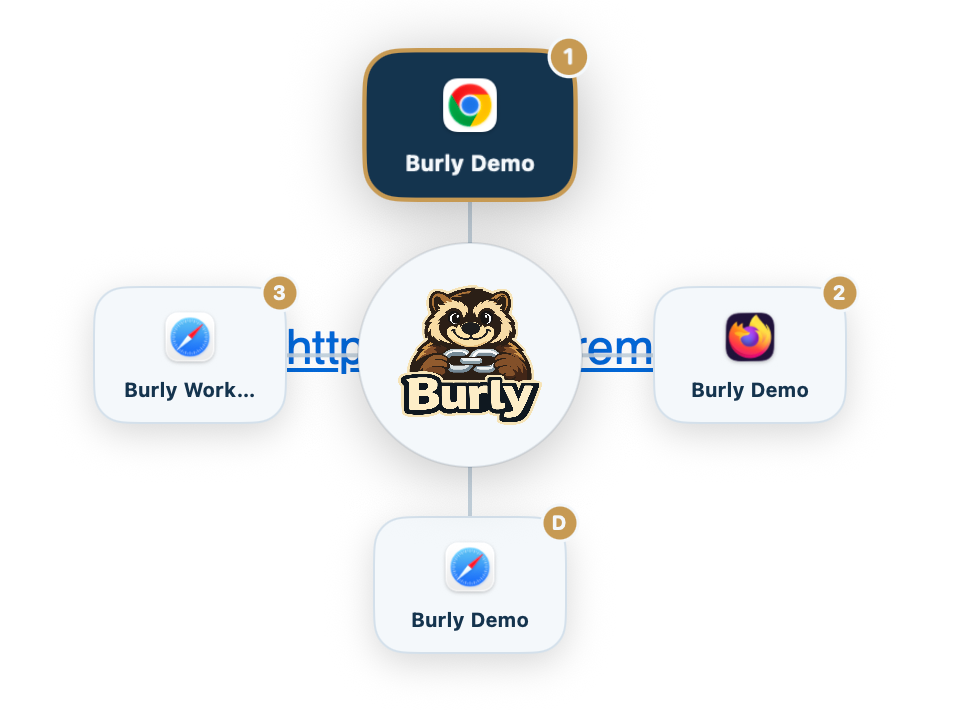
You never hunt for a window or a menu bar extra to finish the click. The picker is already in memory because Burly runs as a resident menu bar agent, so it appears immediately rather than cold-launching. Press the profile key, click a petal, or hold your bypass modifier to skip it. A designer sharing a Figma link during a call can send it to Work without the picker covering the meeting; a late-night shopper can send a store link to Personal without it landing in a work window that will be screen-shared tomorrow.
Works with the browsers you use
Chromium and Firefox profiles can be launched from the command line, so several apps manage those. Safari has no public launch API for a named profile; Burly is one of the few tools that still sends a link there, by driving Safari's own "New Profile Window" menu through the Accessibility API rather than AppleScript. If your work life lives in a Safari profile, that is the difference between a router you can actually use and one that silently drops those links in the wrong place. See the full list on the supported browsers page, and the dedicated Safari profile switcher guide if that is the job you came here for.
Click to choose, hold to skip
The default is built for mixed days, when some links are obvious and some are not. Hold Option (or whichever modifier you pick) on the tenth Jira link in a row and it reopens Work without asking; click a personal newsletter without the modifier and the picker still asks, because that one might belong in Personal or in a shopping profile. The gesture and the destination are separate settings, so you can also invert the gesture and pin a profile under What to open: then every link lands in Chrome Work, and the picker is the thing you opt into by holding the key. Either way, the decision lives at click time rather than in a rules file you have to keep current.
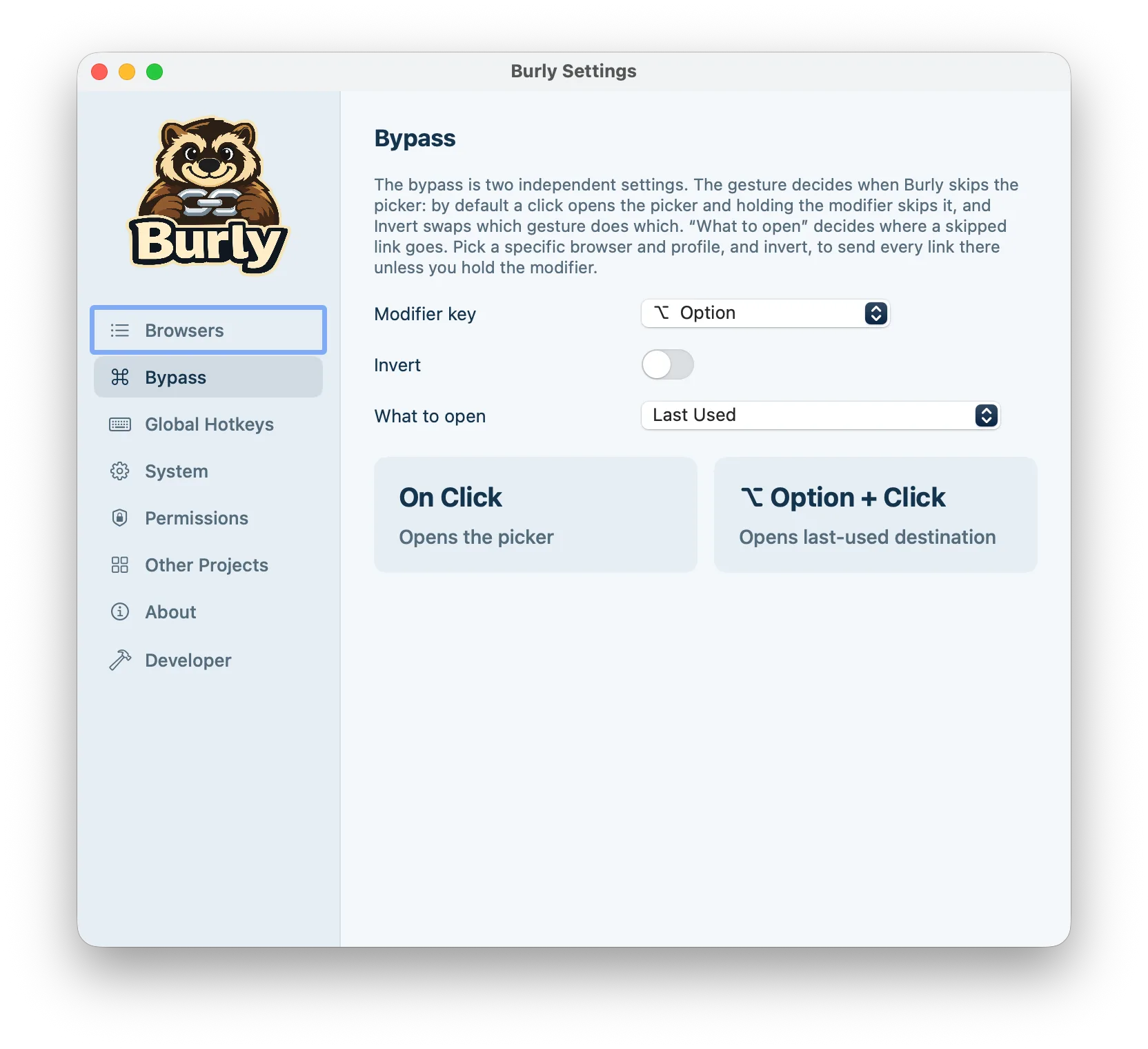
Always open here, unless I say otherwise
This is the setup for people whose links almost always belong in one place: a contractor who works out of Chrome Work all day, or anyone tired of external links landing in whichever profile a browser happened to have in front. The pinned profile is a standing default, not a guess. Choosing another profile from the picker or a global hotkey opens that link there and does not quietly move the default, and the profile that is currently active never overrides it. If the pinned profile is ever unavailable, say the browser was uninstalled, Burly shows the picker and says so rather than dropping the link into some other profile.
A system-wide hotkey for every profile
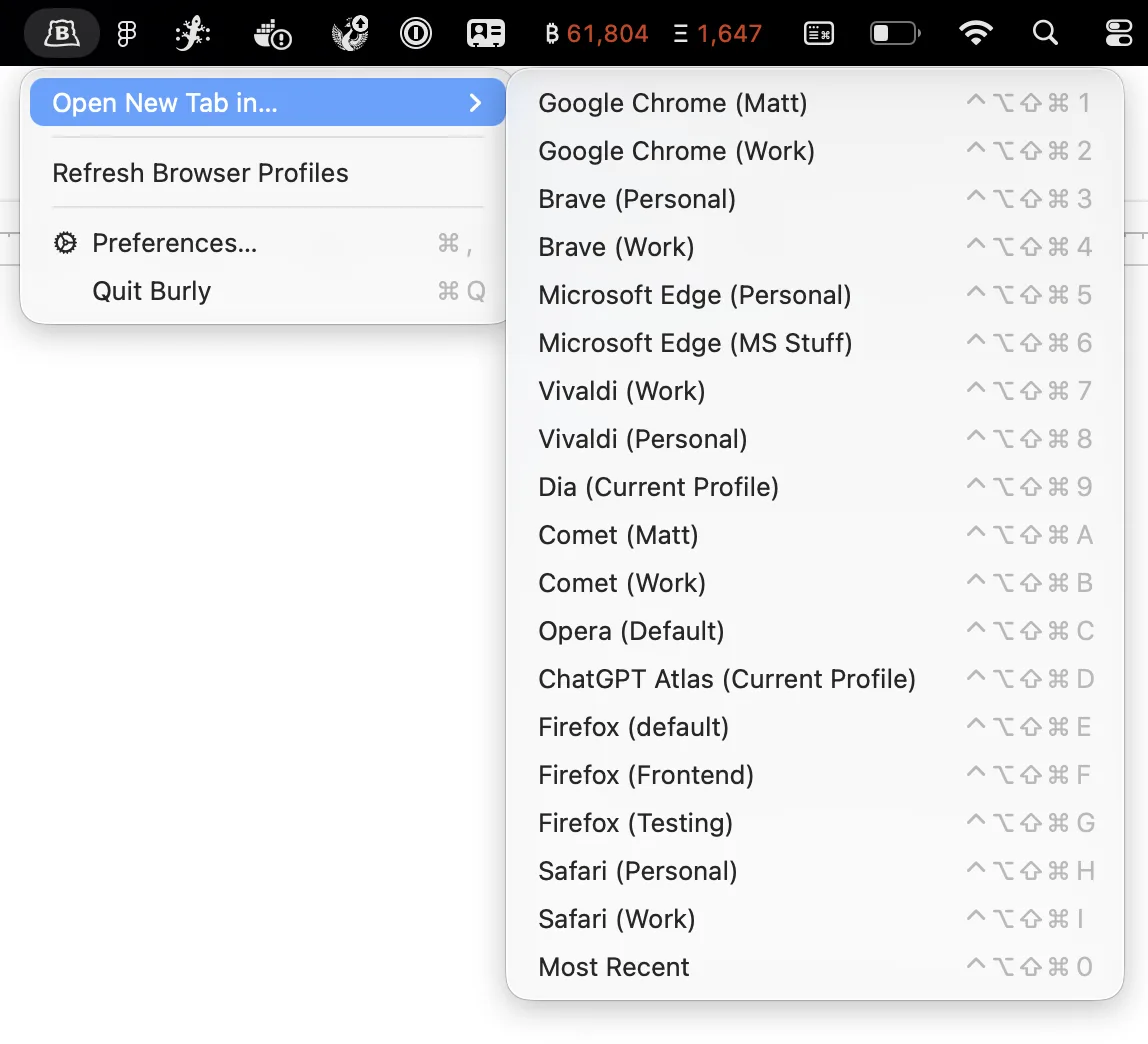
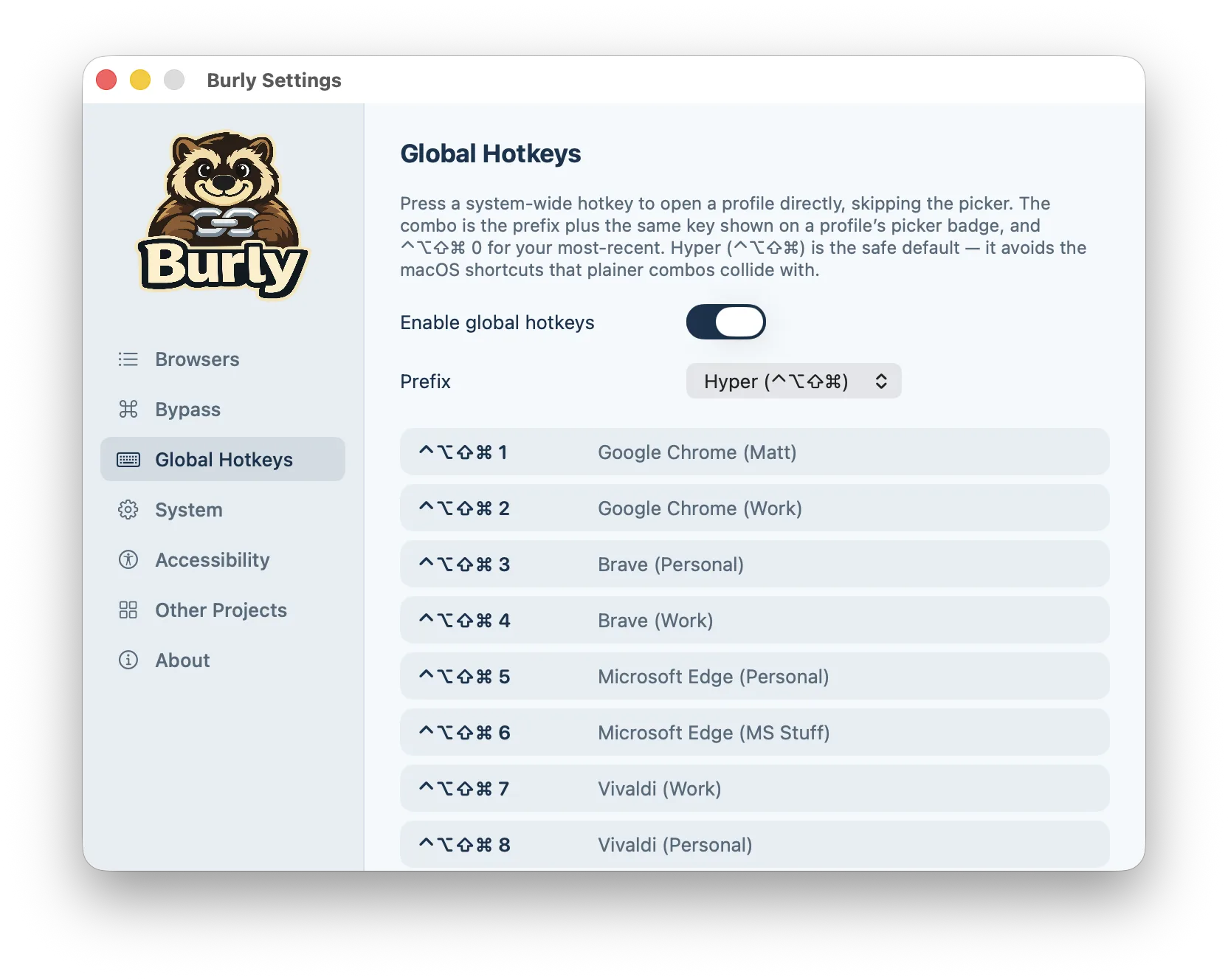
This is the other half of routing: sometimes you are not clicking a link, you just want the work browser in front of you. Press the prefix plus 1 and Work opens to a new tab; prefix plus 0 always reopens whichever profile you used last. Burly auto-assigns keys so this works the moment it is installed, and you can rebind any of them. It is the difference between hunting through Safari's profile menu or Chrome's avatar picker and having the right context appear before you have finished the thought.
Lives quietly in your menu bar
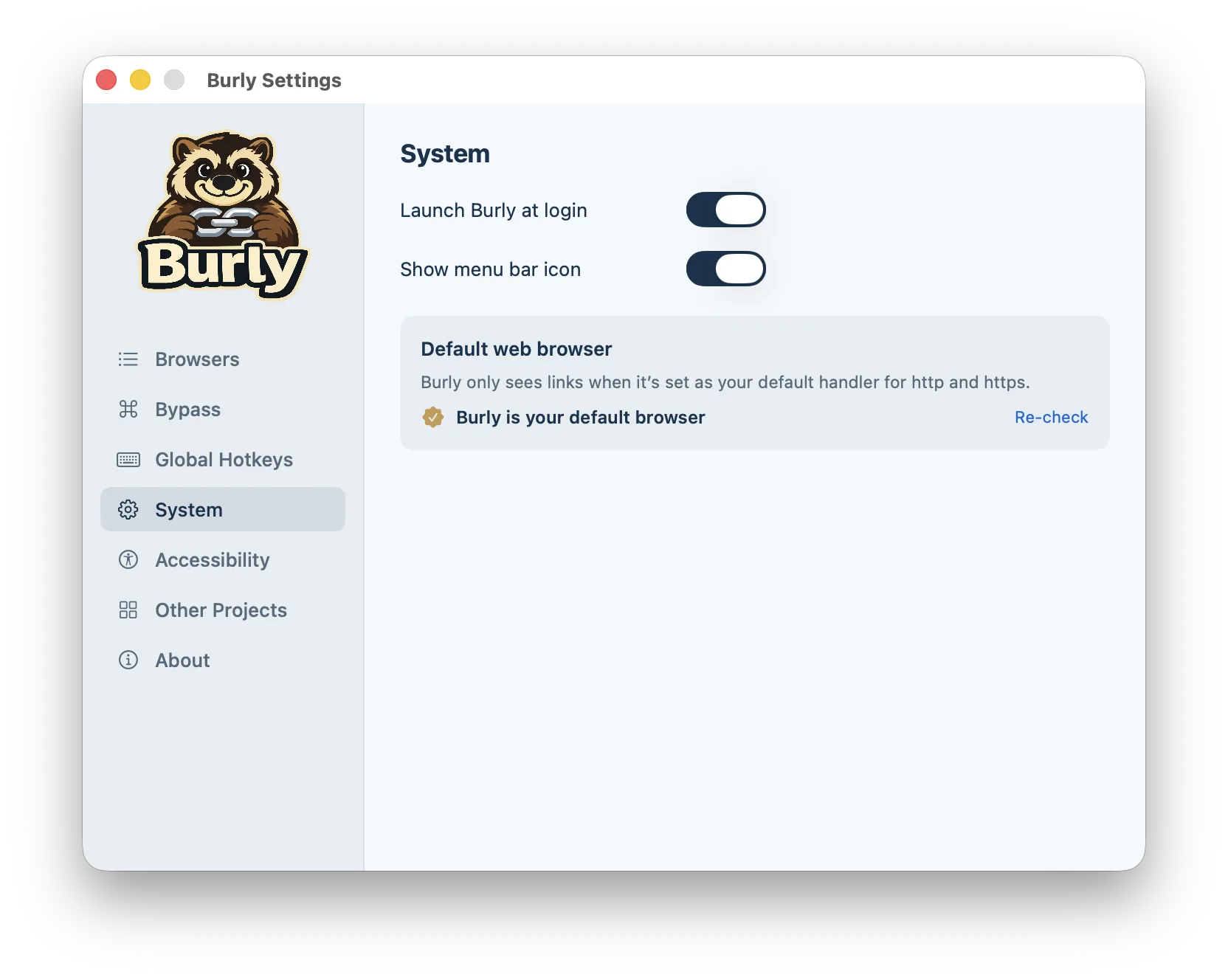
There is no account, no window to manage, and no dashboard to check. After you set it as the default web browser in System Settings, under Desktop & Dock, every http and https click is handed to Burly first. The rest of macOS looks the same. People who already live in a crowded menu bar can hide the icon and keep the picker, the bypass, and the hotkeys. People who like a status check can leave the icon up and confirm at a glance that Burly is still the default handler.
Reduce motion when you want calm
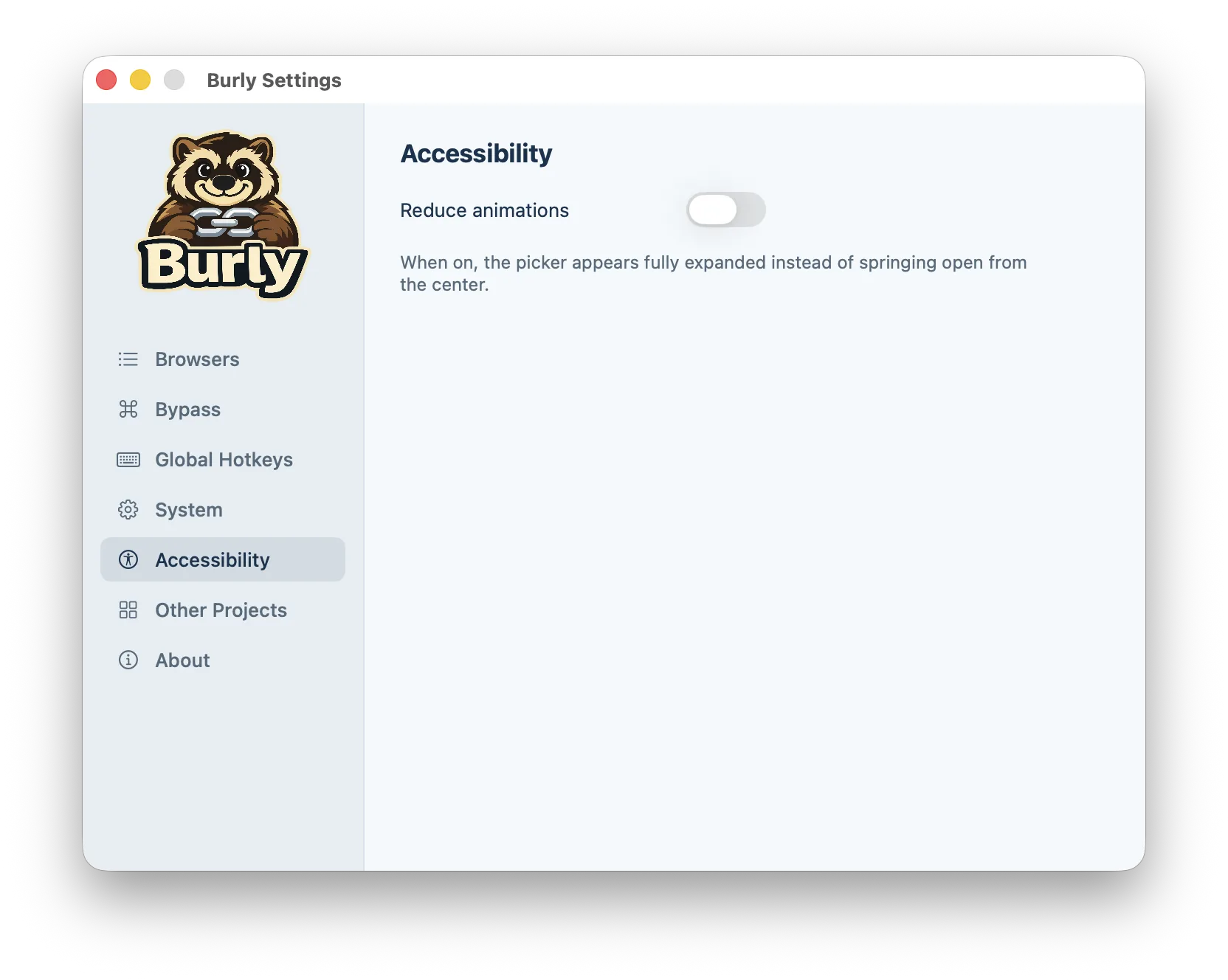
This is for vestibular sensitivity, for screen recordings where a bloom is distracting, and for anyone who just prefers things still. The setting lives in Accessibility, next to nothing else you have to configure. Keyboard selection, the bypass modifier, and last-used routing all keep working. If macOS Reduce Motion is already on, you will feel at home: Burly is matching that preference for the one piece of UI it adds to a click.