
New in Burly: Always Open Links in One Browser Profile
Burly's Bypass settings now include a What to open control. Set it to a specific browser profile and turn on Invert, and every clicked link opens there, with the link router available whenever you hold your modifier key. Arc links also open reliably now, including when Arc was quit.
Download for MacBy Matt Senter, who builds Burly · · 4 min read
Matt Senter is an independent Mac developer who designs, builds, and ships small native apps end to end. He built Burly to send every link on his own Mac to the right browser profile, including Safari profiles, which most routers cannot reach, and he writes these pages from that first-hand use.
Two changes shipped in Burly this week, and both came from people telling us what was annoying them. One is a new setting for anyone who wants every link to land in the same browser profile without being asked. The other is a fix for Arc, which had been eating links in a way that was easy to miss and maddening once you noticed.
A new setting: What to open
The request that started this was specific: "what I would personally like to accomplish is to click a link and have it always go to a particular browser and profile, but also have the option to pick my browser and profile via the modifier key." Burly could already skip the picker; what it could not do was say where a skipped link should go. It always reopened whichever profile you used last.
Settings, under Bypass, now has a third control called What to open. Leave it on Last Used and nothing changes. Set it to a specific profile, Chrome Work or Safari Personal or whatever you live in, and that profile becomes the standing destination for every link the picker does not handle.
It sits next to the two controls that were already there, and the three of them are deliberately independent. The modifier key and the Invert toggle decide when Burly skips the picker. What to open decides where a skipped link lands. The two cards at the bottom of the pane always spell out the combination you have chosen, in your own modifier, so you never have to reason it out.
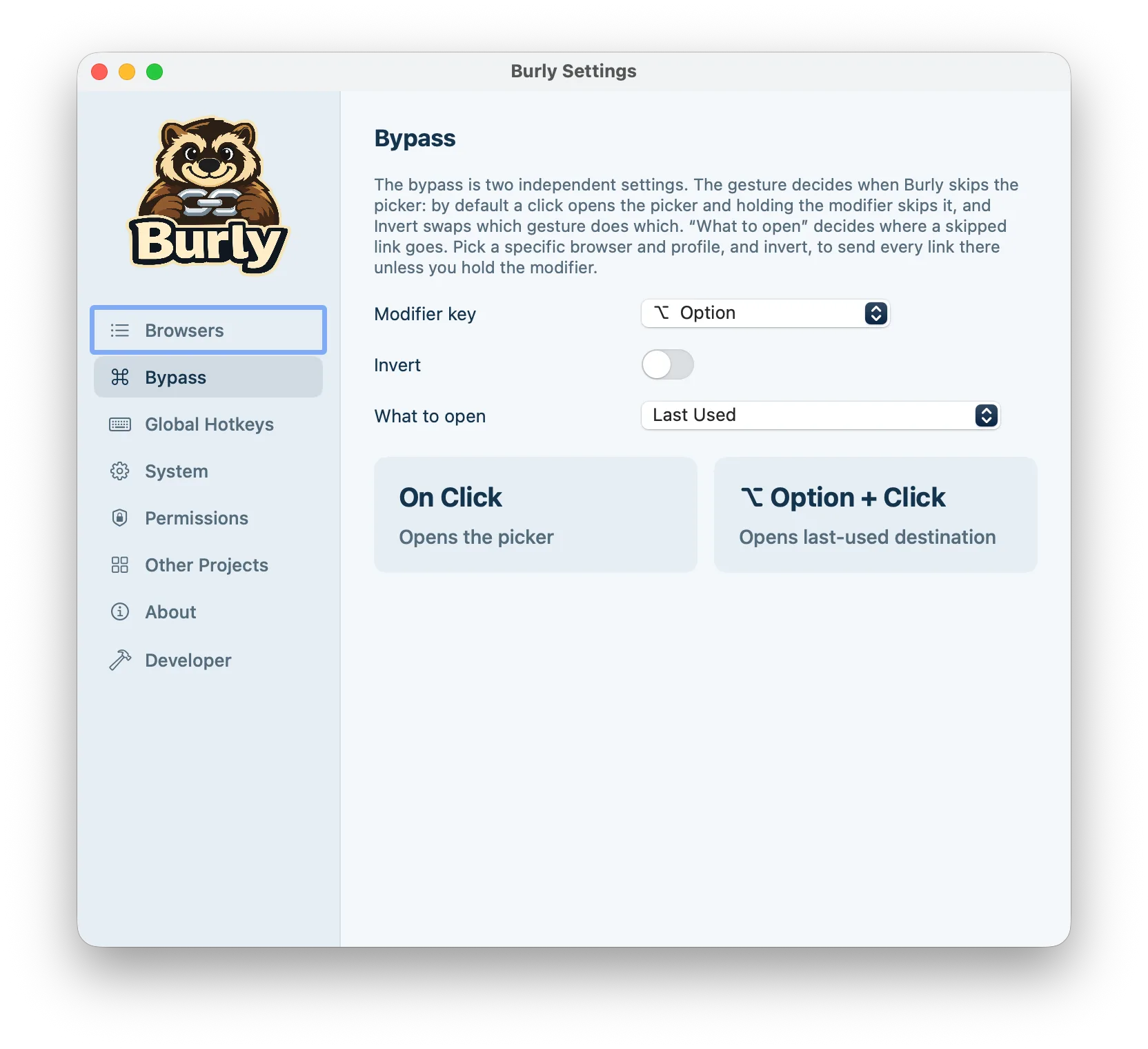
How to make every link open in one profile
This is the combination the request described, and it takes about fifteen seconds to set up:
- Open Burly Settings from the menu bar and choose Bypass.
- Set What to open to the browser profile you want every link to land in.
- Turn on Invert, so a plain click is the gesture that skips the picker.
- Click a link anywhere. It opens in that profile immediately, with no picker in the way.
- Hold your modifier, Option unless you changed it, while clicking a link that belongs somewhere else. The picker blooms and you choose.
Leave Invert off and you get the mirror image, which is just as useful: a plain click still opens the picker, and holding the modifier fires the link at your pinned profile. Either way the picker is never more than one key away, which is the part that makes a fixed destination comfortable to live with.
A default that stays put
A standing default is only worth having if it actually stands still, so the rules around it are strict. Choosing a different profile from the picker opens that link there and nothing more: it does not quietly become your new default. Neither does opening a profile with a global hotkey. Whichever browser profile happens to be active on your screen has no say in it either, which is the exact behavior that makes external links land in the wrong place to begin with.
If the profile you pinned ever goes missing, say you uninstall that browser, Burly does not fall back to something else and hope you do not notice. It shows the picker with a short note explaining that your chosen destination is unavailable, keeps the link, and leaves your selection in Settings so you can repair it rather than discovering months later that links have been quietly going somewhere new.
Arc links now open reliably
The second change is a fix. Two Arc problems, both reported by the same user, both now sorted.
The first was an "Arc is already open" alert instead of a link. Burly had been treating Arc as an ordinary Chromium browser and asking macOS for a second instance carrying a profile flag. Chrome forwards that to the copy already running; Arc refuses it. Since Arc is almost always running, that path failed far more often than it worked. Arc is now handled like Dia and ChatGPT Atlas: one destination, links handed to the running app, no second instance requested.
The second was subtler. Arc silently discards a link handed to it while it has no browser window open, which is the state right after you quit it, and on a fresh install. The link simply vanished and Arc came up showing only its command bar. Burly now waits for a real Arc window before handing the URL over, and presses New Window itself if none appears within a few seconds. That wait uses the macOS Accessibility permission you may already have granted for Safari profiles; without it, Burly falls back to the old plain handoff.
Arc still opens links in whichever profile is active, because Arc runs a single instance and gives no way to launch into a named profile. What changed is that the link arrives at all. The full picture of what routes by profile and what does not lives on the supported browsers page.
Update to get both
Both changes are in the current build. Burly checks for updates in the background and shows an Update button in the menu bar when one is ready, so you may already have them; if you would rather not wait, Check for Updates in the menu bar is the fast path.
Existing settings carry over untouched. Your modifier, your Invert toggle, and a bypass destination you chose during onboarding all appear in the new control exactly as you left them, with What to open reading Last Used unless you picked something specific.
Try Burly free
Route every link to the right browser profile in seconds. Native, private, and free. No account required.
Download for macOS