
Open Any Browser Profile With a Keyboard Shortcut on macOS
A Mac link router can register a global hotkey per profile. In Burly the shortcut is a shared prefix (Hyper by default) plus one key, so prefix-plus-1 opens Work to a fresh tab from anywhere, with no link and no picker.
By Matt Senter, who builds Burly · · 4 min read
Matt Senter is an independent Mac developer who designs, builds, and ships small native apps end to end. He built Burly to send every link on his own Mac to the right browser profile, including Safari profiles that other routers cannot reach, and he writes these pages from that first-hand use.
There are two ways to open a browser profile, and both involve more steps than they should. You can hunt through the browser's profile menu, click the one you want, and wait for a window to appear. Or you can click a link and route it to the right profile after the fact. Either way, your hand leaves the keyboard and you spend a few seconds on something you do dozens of times a day.
Burly adds a third way: a single global keyboard shortcut that opens any profile directly, from anywhere on your Mac, straight to a fresh tab. No link required, no picker, no menu. You think "work browser" and it is in front of you before you have finished the thought. That shortcut lives in the same link router that already handles clicked links, so you are not installing a second launcher just for profiles.
How the shortcuts are built
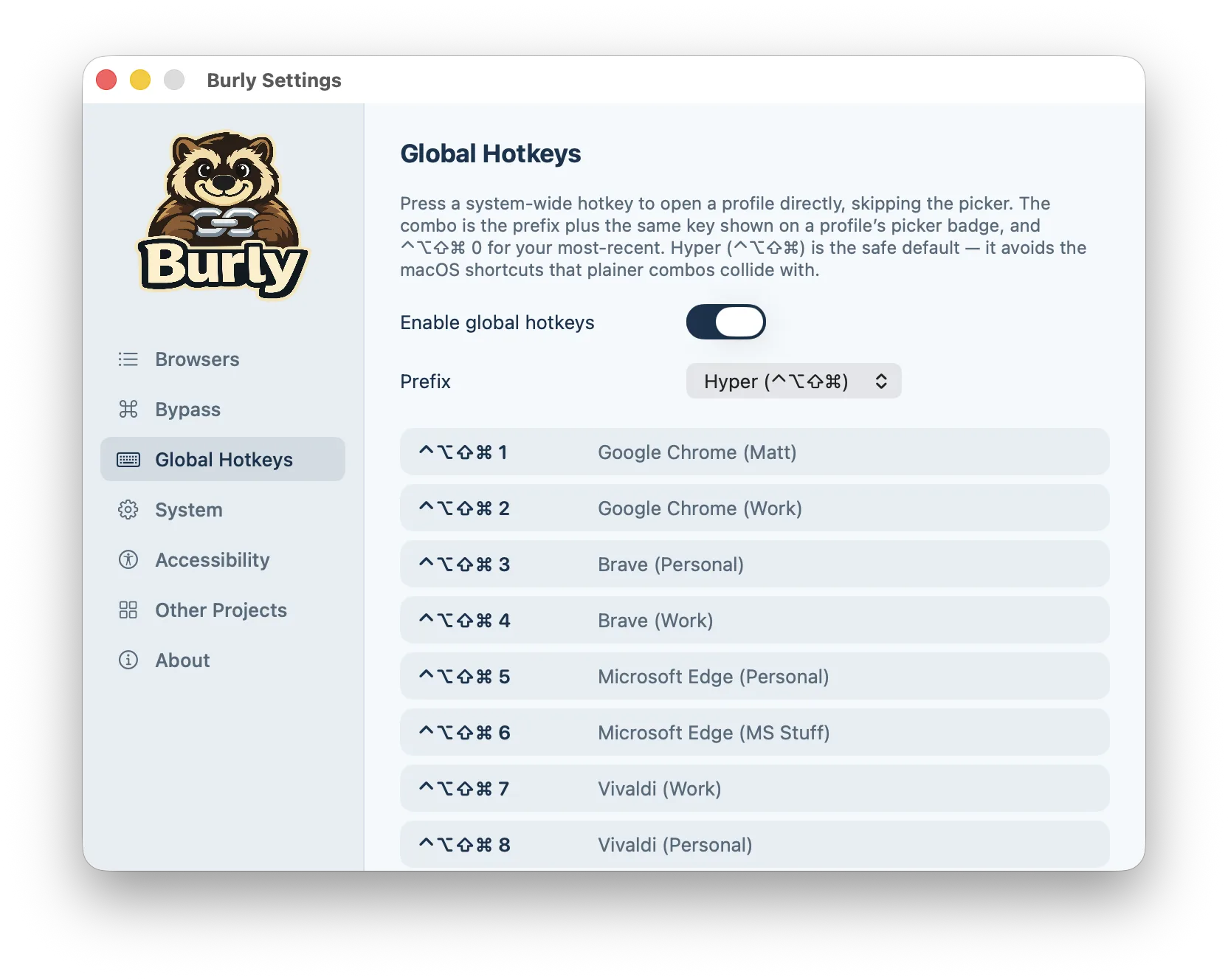
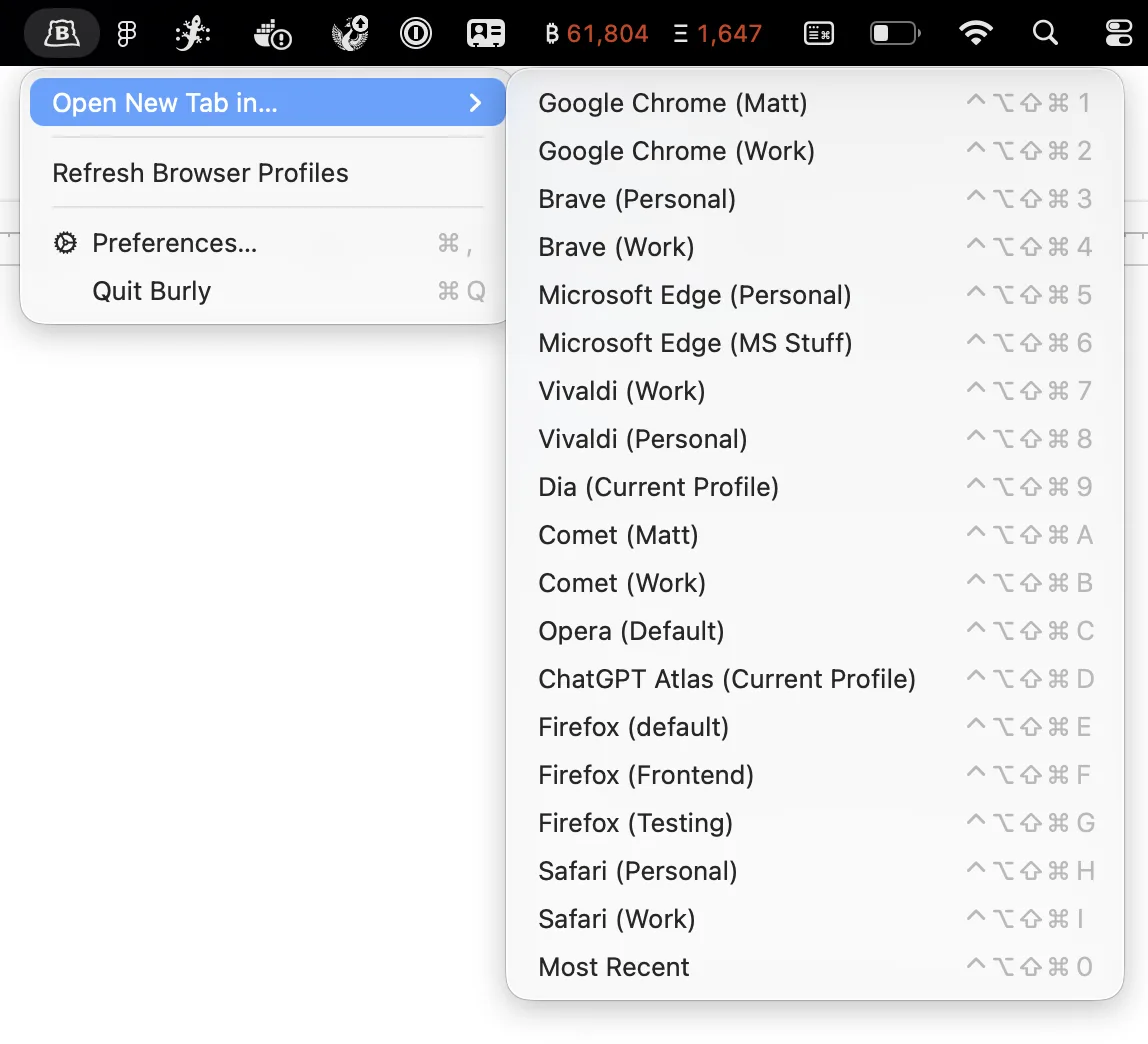
Every Burly hotkey is a shared prefix plus a single key. The prefix is one modifier combo you press for all of them; the key is what picks the profile. So if your Work profile is on 1 and Personal is on 2, the prefix plus 1 opens Work and the prefix plus 2 opens Personal. One muscle-memory chord, a different finger for each profile.
You do not have to set any of this up. Burly auto-assigns a key to each profile in order, 1 through 9 and then the letters A through Z, so the shortcuts work the moment you install it. If you want a specific profile on a specific key, click its key in Settings and press the one you want. A solid keycap means you chose it; a dashed one is the auto-assigned default.
Why the default prefix is Hyper
The default prefix is the Hyper combo, Control-Option-Shift-Command, all four modifiers at once. It looks like a lot, but that is the point: no part of macOS and almost no app claims it, so your profile shortcuts never collide with something else. Plain Control plus a digit is already Mission Control's "switch to Desktop N," Command plus a digit switches tabs, and the other single modifiers just type characters. Hyper sidesteps all of it.
If a four-finger chord is more than you want, Settings offers shorter presets, Control-Option-Command, Control-Option-Shift, or Option-Command. They are all curated to avoid the system shortcuts that single modifiers would stomp on, so whichever you pick stays conflict-free.
The one shortcut to memorize first
There is a reserved key worth learning before any other: the prefix plus 0 always opens your most recently used destination. It is not tied to a particular profile, it follows wherever you were last. When you spend a day ping-ponging between two profiles, that single keystroke becomes the one your hand reaches for automatically.
The same 0 works inside the picker too. When a link does bring up the profile picker, pressing 0 there sends it to the most recent destination, so the reserved key behaves the same whether you are launching a profile cold or routing a link.
A faster way to live in your profiles
The link picker is what most people meet first, and it is the right tool when a link could plausibly belong to more than one profile. But the profiles you actually live in, the work browser, the personal browser, are not ambiguous. You always know where they go. For those, the fastest interface is no interface: a keystroke that opens the exact profile you meant, no question asked.
Global hotkeys are on by default, so this is already working the moment Burly is installed. Learn the prefix, learn the two or three keys for the profiles you use most, and opening the right browser context stops being a task you do and becomes something your hands do for you.
Try Burly free
Route every link to the right browser profile in seconds. Native, private, and free. No account required.
Download for macOS