
Browser Profiles on a Mac: Safari, Chrome, Firefox, Edge, and Arc
Every major Mac browser now supports profiles, but each one decides on its own which profile receives a link clicked in another app, usually the one you used last. Start with each browser's own setting where it has one, and if you keep profiles in more than one browser, put a profile-aware browser picker in front of every click so you choose the destination yourself.
By Matt Senter, who builds Burly · · 7 min read
Matt Senter is an independent Mac developer who designs, builds, and ships small native apps end to end. He built Burly to send every link on his own Mac to the right browser profile, including Safari profiles that other routers cannot reach, and he writes these pages from that first-hand use.
A browser profile is a separate copy of your browser's state: its own logins and cookies, its own history, its own bookmarks and extensions, and usually its own color or icon so you can tell the windows apart. Two profiles in the same browser behave like two different people using it. You can be signed in to a work Google account in one and a personal account in the other, with neither one aware of the other.
Profiles are the cleanest way to keep work and personal life apart on one Mac, and every major browser now has them. The catch is that each browser implemented them its own way, and none of them agree on the question that matters most day to day: when you click a link in Mail, Slack, or a calendar invite, which profile does it open in? This guide walks through each browser, then through the fixes, from the built-in settings to a picker that asks you.
How do Safari profiles work on a Mac?
Safari has had profiles since Safari 17, which arrived with macOS Sonoma. You create one from Safari > Settings > Profiles, and every Safari install keeps a Personal profile as its default. Each profile has its own history, cookies, website data, extensions, and Tab Groups, and it opens in its own windows, as Apple's Safari profiles guide describes.
To open a window in a given profile, choose File > New Window and pick the profile from the submenu, use the profile button in the toolbar, or right-click Safari in the Dock. Safari also lists keyboard shortcuts for each profile window in that submenu, though they only work while Safari is the frontmost app. The Safari profile switcher guide covers every one of those routes in more detail.
For links that arrive from other apps, Apple says Safari opens them in the profile used most recently. There is one override, a per-website setting called Open Links With Profile, and it has limits worth knowing before you rely on it. They are covered in why Safari's Open Links With Profile setting misfires.
How do Chrome profiles work on a Mac?
Chrome profiles are the most familiar kind. You add one from the profile button in the toolbar, give it a name, a photo, and a color, and it opens in its own windows alongside the others. Google's help page on Chrome profiles covers creating, switching, and editing them.
Behind the scenes, each profile is a folder inside Chrome's data directory, named Default for the first one and Profile 1, Profile 2, and so on for the rest. That folder name, not the name you typed, is what Chrome needs if anything outside the browser wants to open a specific profile. The practical details, including how to look the folder up, are in how to open links in a specific Chrome profile.
When a link arrives from another app, Chrome opens it in whichever profile window was most recently in front. Google documents no setting to change that. If you run two or three Chrome profiles side by side all day, using multiple Chrome profiles at once on a Mac covers how to keep them straight.
How do Firefox profiles work on a Mac?
Firefox has had profiles for a very long time, but for most of that history they lived behind a hidden profile manager that few people ever opened. That changed in 2025. Mozilla rolled out a new profile manager to every desktop user starting on October 14, 2025, with Firefox 144, so profiles now sit in the Firefox menu with their own names, themes, bookmarks, logins, and extensions, as Mozilla announced.
For external links, Firefox has traditionally used whichever profile is marked as the default. Choosing a separate profile just for links opened from other apps has been a request on Mozilla's feedback site rather than a shipped setting. The details, including the command line flags Firefox accepts, are in how to open external links in a Firefox profile.
How do Microsoft Edge and Brave profiles work?
Edge and Brave are both built on Chromium, so their profiles work much like Chrome's: each profile is a folder, and each opens in its own windows. Brave keeps its folders under its own BraveSoftware directory, and you can see a profile's path on its brave://version page.
Edge is the one browser here that answers the external link question with a real setting. Its profile preferences include a Default profile for external links option, and Microsoft documents a policy for managed Macs that sends links from outside the browser to your work profile, as described in Microsoft's Edge policy reference. If Edge is the only browser you use, that setting may be all you need. Brave, Edge, and Arc profiles on a Mac covers both browsers in detail.
What about Arc?
Arc organizes browsing into Spaces, and a profile in Arc is attached to one or more Spaces rather than living in its own set of windows. Arc's own routing feature, Air Traffic Control, sends external links to a Space based on rules about the URL. That is a genuinely useful idea, but it only works inside Arc.
Two things are worth knowing before you build a routine around Arc. The Browser Company stopped adding features to Arc in May 2025 to focus on its newer browser, Dia, and Atlassian announced in September 2025 that it was acquiring the company. And Arc runs as a single instance that cannot be launched straight into a named profile, which limits what any outside tool can do with it.
Which profile opens a link you click in another app?
It depends entirely on the browser, and in most cases the answer is whichever profile you happened to use last. That is the root of the familiar problem: you click a work link in Slack, it opens in your personal profile because that is where you were a minute ago, and you are suddenly looking at the wrong inbox.
Here is how each browser decides, according to its own documentation:
- Safari opens external links in the profile used most recently, unless a per-website Open Links With Profile rule matches the destination.
- Chrome opens them in the most recently used profile, and Google documents no setting to pick a different one.
- Firefox sends them to the profile marked as default.
- Edge uses its Default profile for external links setting, or the work profile on Macs managed by policy.
- Arc sends them to a Space according to its Air Traffic Control rules.
Notice what every one of those answers has in common. The browser decides in advance, from a fixed rule or from recent history, and the decision covers only that browser. None of them can send one link to Safari Work and the next to Chrome Personal, because macOS itself has no idea profiles exist. It hands every http and https link to a single default browser app, and the browser takes it from there.
How do you choose which profile each link opens in?
Start with the built-in options, because they cost nothing and sometimes they are enough. If you live entirely in Edge, set its default profile for external links. If you live entirely in Safari and a handful of sites always belong in one profile, add Open Links With Profile rules for them. If you use one Chrome profile for almost everything, the last-used behavior may never bother you.
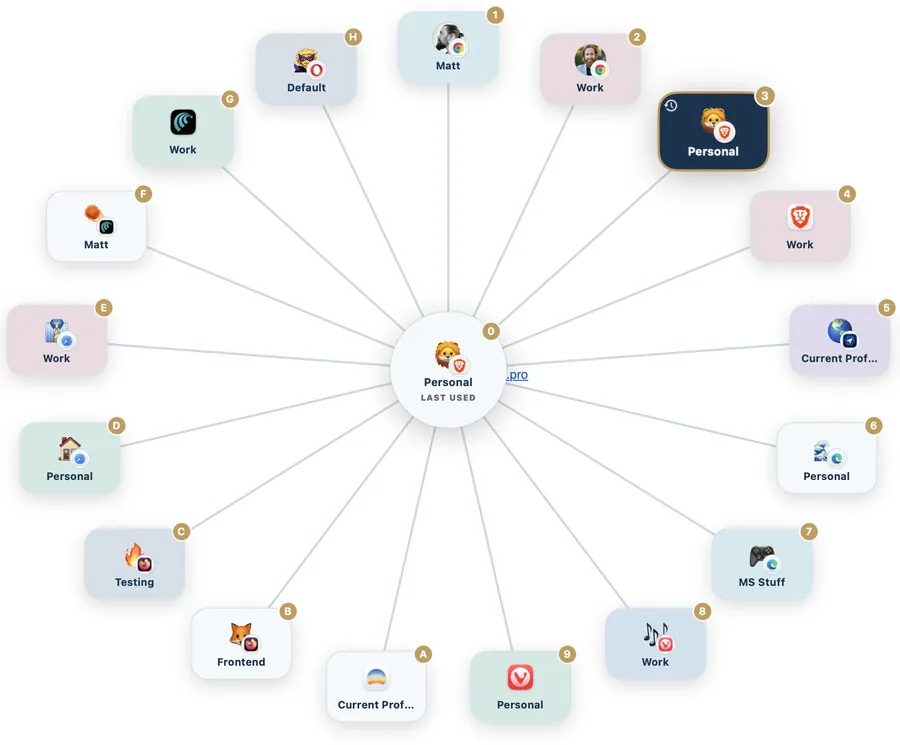
The built-in options run out when your profiles span more than one browser, or when the same site belongs in different places on different days. That is where a profile-aware link router earns its place. It becomes the default browser app, receives every link first, and then opens the exact profile you pick, in whichever browser it lives. Opening links in a specific browser profile walks through that setup step by step, and keeping work and personal profiles separate covers the habits that make it stick.
Burly is one such router, free and native, and it is built around profiles rather than browsers. It discovers the profiles already on your Mac, shows them in a picker under your cursor when you click a link, and opens the one you choose. It reaches Safari profiles as well as Chromium and Firefox ones, which most routers cannot do. The supported browsers page lists exactly what it can route by profile and what it hands to the active profile instead, including Arc.
- Download Burly and move it to your Applications folder.
- Set it as your default web browser in System Settings, under Desktop & Dock.
- Let it read your browsers and profiles; there is nothing to enter by hand.
- Click a link anywhere on your Mac and pick the profile it belongs in.
Which approach should you use?
If one browser holds all your profiles and it has a setting for external links, use the setting and skip the extra app. If your profiles are spread across Safari and Chrome, or Chrome and Firefox, or you want to choose per click rather than per website, a picker is the only thing that covers the whole Mac. And if links from particular apps are the real problem, opening Slack, Teams, and Outlook links in the right profile looks at what each of those apps actually does with a link.
Try Burly free
Route every link to the right browser profile in seconds. Native, private, and free. No account required.
Download for macOS