
Make Slack, Teams, and Outlook Links Open in the Right Browser Profile on Mac
On a Mac, Slack and Outlook send links to your default browser, which opens them in whichever profile you used last. Teams adds a link open preference, but none of the three can target a specific profile. To land every work link in your Work profile, use a per-browser setting where one exists, or a browser picker that asks at click time.
By Matt Senter, who builds Burly · · 5 min read
Matt Senter is an independent Mac developer who designs, builds, and ships small native apps end to end. He built Burly to send every link on his own Mac to the right browser profile, including Safari profiles that other routers cannot reach, and he writes these pages from that first-hand use.
Work links mostly arrive through three apps: Slack, Microsoft Teams, and Outlook. Each one hands the link to macOS, macOS hands it to your default browser, and the browser drops it into whatever profile happens to be in front. A shared doc opens logged into your personal account, a dashboard asks you to sign in again, and a work link ends up in a window you are about to screen-share.
Here is what each app actually does on a Mac, which settings help, and how to make work links land in Work every time. For how profiles work in each browser, see the guide to browser profiles on a Mac.
Where do Slack, Teams, and Outlook send links on a Mac?
All three ultimately rely on the macOS default web browser, set in System Settings > Desktop & Dock (Apple Support). None of them knows about browser profiles, so the profile is decided by the browser, not the app.
Slack for Mac opens links in the system default browser, and we have not found an in-app setting to change that. Outlook for Mac follows the default browser too: the Open hyperlinks from Outlook in setting, and the change that sends Outlook links to Microsoft Edge, are documented by Microsoft as applying to Windows only (Microsoft Support).
Teams is the exception. Microsoft documents a Link open preference under Settings > Files and links. On a Mac, look for that setting; reports of the Mac rollout describe a choice between your system default browser and Microsoft Edge. It picks a browser, not a profile.
Why do work links land in the wrong profile?
Because browsers route external links to the last profile you used. Safari opens links from other apps "in the profile used most recently" (Apple Support). Chrome sends them to the most recently focused profile, and offers no setting to change it. Firefox uses its single default profile.
So the profile a Slack link lands in depends on what you were doing a minute ago, not on where the link belongs. Switch to Personal to check a delivery, click a Jira link in Slack, and it opens in Personal.
Which browser settings can help?
Two browsers offer a partial fix of their own, and if your setup fits them, they are all you need.
Safari has Open Links With Profile, under Safari > Settings > Websites. It assigns a website to a profile for links opened from other apps, so you can send your company's domains to Work. It is per website, it misses redirected and shortened links, and it only covers Safari. If it seems to ignore you, the troubleshooting is in why Safari's Open Links With Profile does not work.
Microsoft Edge has a Default profile for external links setting in its profile preferences, and Microsoft's own policy notes that links opened from Outlook or Teams can be configured to launch in a specific Edge profile (Microsoft Learn). If your work lives in Edge and every external link can go to one Edge profile, that is a clean fix.
Chrome has no equivalent setting, and Firefox only offers one global default profile in about:profiles.
One thing to avoid: splitting work and personal by browser instead of by profile, with Chrome as the default for work and Safari opened by hand for personal. It seems tidy, but the default browser still receives every link from every app, so personal links from Messages land in work Chrome, and you are back to copying URLs between windows.
How do you make every chat link open in your Work profile?
If nearly every link from Slack, Teams, and Outlook belongs in one profile, pin that profile as the destination for every link, and keep a way to override it. That is the one-profile setup, and it is the fastest to live with.
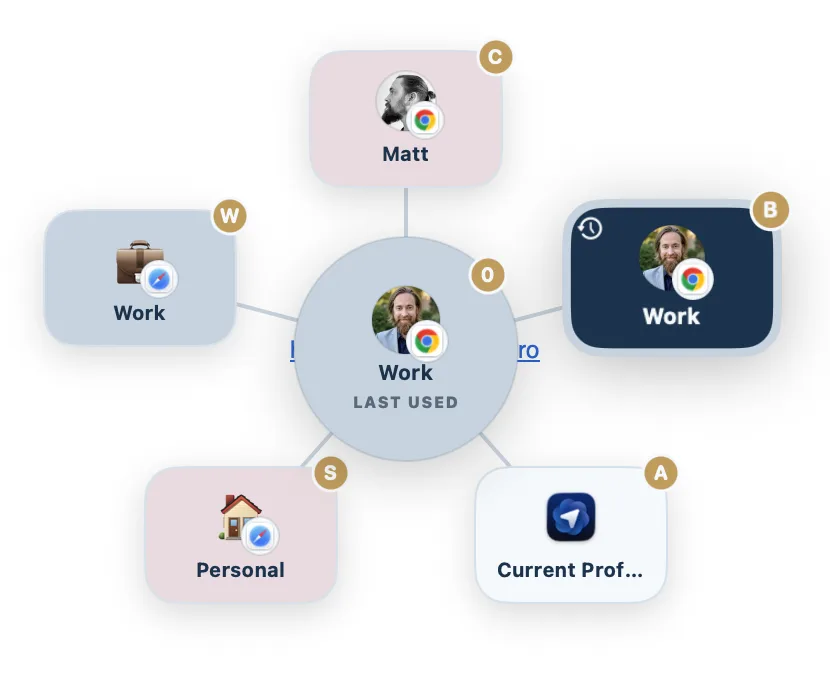
Burly does this with two settings. Set What to open to your Work profile and turn on Invert, and every clicked link opens there with no picker. When a link belongs somewhere else, hold your modifier and the picker appears. The full walkthrough is in always open links in one browser profile.
- Download Burly and set it as your default web browser in System Settings > Desktop & Dock.
- Open Burly Settings from the menu bar and choose Bypass.
- Set What to open to your Work profile, in Safari, Chrome, Firefox, or another supported browser.
- Turn on Invert, so a plain click goes straight to Work.
- Click a link in Slack, Teams, or Outlook. It opens in Work, whatever profile you used last.
What if links from the same app belong in different profiles?
Then no single default can help, and choosing at click time is the answer. With Burly left on its default behavior, every link opens a radial picker at your cursor, with each profile on its own key. A client's doc in Slack goes to that client's profile, a Teams meeting link goes to Work, and a personal link a colleague shared goes to Personal.
Because Burly is a link router rather than a browser setting, it works the same for Slack, Teams, Outlook, and every other app, and it reaches profiles in Safari, Chrome, and Firefox from one picker. Safari profiles need the Accessibility permission, which Burly asks for on first launch.
Which fix should you use?
If all your work lives in Edge, use its Default profile for external links. If it lives in Safari and your work domains are few and stable, use Open Links With Profile. If links belong in different profiles, or your profiles span more than one browser, let a picker ask. Whichever you choose, set the default browser in Desktop & Dock first, because every one of these fixes starts there.
Try Burly free
Route every link to the right browser profile in seconds. Native, private, and free. No account required.
Download for macOS