
Brave, Edge, and Arc Profiles on a Mac: How Links Route to Each
Brave and Edge store profiles the way Chrome does, as folders you can target by name, and Edge adds its own Default profile for external links setting. Arc ties profiles to Spaces and routes links with Air Traffic Control, but it cannot be launched into a named profile from outside. A Mac link router can pick Brave and Edge profiles per click and hands Arc links to the active profile.
By Matt Senter, who builds Burly · · 5 min read
Matt Senter is an independent Mac developer who designs, builds, and ships small native apps end to end. He built Burly to send every link on his own Mac to the right browser profile, including Safari profiles that other routers cannot reach, and he writes these pages from that first-hand use.
Chrome and Safari get most of the attention, but plenty of people keep their work life in Edge because their company signs in with Microsoft, or their personal life in Brave, or everything in Arc. Each of those browsers handles profiles a little differently, and each answers the question of which profile gets a link from another app in its own way.
Here is how the three compare on a Mac, what each one offers built in, and where an outside tool helps. For Safari, Chrome, and Firefox, see the guide to browser profiles on a Mac.
How do Brave profiles work on a Mac?
Brave is built on Chromium, so its profiles work like Chrome's. Each profile is a folder inside Brave's data directory, named Default for the first and Profile 1, Profile 2, and so on after that. To see which folder belongs to which profile, open a window in that profile and visit brave://version, where the Profile Path line shows the folder.
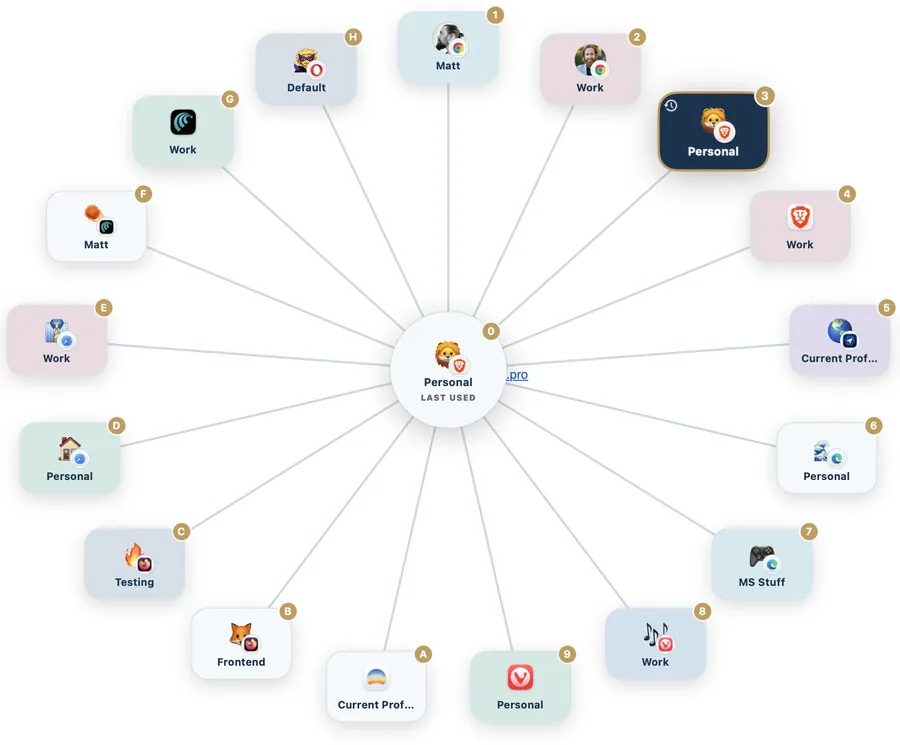
Like Chrome, Brave opens links from other apps in the profile you used last. Because the folders follow the Chromium pattern, the same approach that targets a Chrome profile applies here, explained step by step in opening links in a specific Chrome profile. Burly lists Brave profiles alongside Chrome ones and launches the one you pick by its folder, with nothing to configure.
Does Microsoft Edge let you choose the profile for external links?
Yes, and it is the only browser here with a proper setting for it. In Edge's profile preferences there is an option called Default profile for external links, which decides where links from other apps open. On Macs managed by an organization, a Microsoft policy can send external links to the signed-in work profile instead, and with that policy turned off the last used profile becomes the default, as Microsoft's Edge policy reference explains.
If Edge is the only browser you use and one profile should receive every outside link, set that option and you are done. You do not need another app for that.
It is worth checking the setting even if you never changed it. On a Mac managed by your employer, the work profile policy may already be deciding for you, which explains why links sometimes land in the work profile no matter which window you were just using.
- Open Edge and go to edge://settings/profiles.
- Open the profile preferences for multiple profiles.
- Set Default profile for external links to the profile you want.
The setting is still a single standing choice, though. It cannot send one link to Work and the next to Personal, and it has nothing to say about profiles in any other browser. Edge also accepts the Chromium profile directory flag, and you can read a profile's folder at edge://version, but some Mac users report that the flag is ignored when they launch Edge by hand while it is already running. If you rely on scripts, test yours with Edge both open and closed.
How do Arc profiles and Spaces work?
Arc is organized around Spaces rather than windows. A profile in Arc holds its own logins, cookies, and history, and it is attached to one or more Spaces, so switching Space can switch identity too. For links from other apps, Arc has its own routing feature, Air Traffic Control, which sends a link to a particular Space when its URL matches a rule, and otherwise to a default Space or the one you used most recently, as Arc's help center describes.
Air Traffic Control is a good fit if Arc is your only browser and your routing is predictable by domain. Like Safari's per-site setting, though, it decides in advance by URL, and it stops at Arc.
Can another app open a link in a specific Arc profile?
Not reliably. Arc runs as a single instance and cannot be launched straight into a named profile, so an outside tool can hand Arc a link but cannot choose which profile it lands in. Burly treats Arc that way: it appears in the picker as one destination, and the link opens in whichever Arc profile is active.
Burly does help with one Arc problem. Arc quietly drops a link it receives while it has no browser window open, which is its state right after you quit it. Burly waits for a real Arc window before handing the link over, and opens one itself if none appears, using the Accessibility permission. The supported browsers page lists Arc with Dia and ChatGPT Atlas as browsers that open links in the current profile.
It is also worth knowing where Arc is heading. The Browser Company stopped developing new Arc features in May 2025 to focus on Dia, and Atlassian announced in September 2025 that it was acquiring the company. Arc still works, but it is not the browser to build a new profile setup around.
How do the three compare at a glance?
Put side by side, the three browsers split cleanly into two groups. Brave and Edge behave like Chrome, with folder-based profiles that an outside tool can open by name. Arc does its own thing, and keeps routing decisions inside itself.
- Brave: Chromium profile folders, shown at brave://version. External links go to the last used profile, with no built-in setting to change it.
- Edge: Chromium profile folders, shown at edge://version. External links follow the Default profile for external links setting, or a work profile policy on managed Macs.
- Arc: profiles attached to Spaces. External links follow Air Traffic Control rules, and Arc cannot be launched into a named profile from outside.
Which approach fits your setup?
If Edge is your only browser, use its external links setting. If Arc is your only browser, use Air Traffic Control. If your profiles are spread across more than one browser, say Edge for work and Brave or Safari for personal, no single browser setting can cover them all, because each one only knows about itself.
That is the case a profile-aware browser picker is built for. Burly becomes the default browser, shows every Brave and Edge profile, along with Chrome, Safari, and Firefox ones, in one picker, and opens the one you choose for each link. It is free, and if one profile gets nearly everything you can pin it and only choose when you hold a key.
Try Burly free
Route every link to the right browser profile in seconds. Native, private, and free. No account required.
Download for macOS