
Work vs. Personal: Keeping Browser Profiles Separate on a Mac
Create a named profile per context inside the browser you already use, not one browser for work and another for personal. Then put a Mac link router in front of every click so work invites open in Work and personal links open in Personal, instead of whichever profile happens to be in front.
By Matt Senter, who builds Burly · · 5 min read
Matt Senter is an independent Mac developer who designs, builds, and ships small native apps end to end. He built Burly to send every link on his own Mac to the right browser profile, including Safari profiles that other routers cannot reach, and he writes these pages from that first-hand use.
If you use one Mac for both work and life, the line between the two lives in your browser. Work has its single sign-on, its shared drives, its calendar. Personal has your bank, your shopping, your group chats. Mixing them is how you end up posting to the company Slack from your personal account, or seeing personal tabs in a screen share. Profiles are the fix, and the good news is every major browser supports them.
Set up a profile per context, not per browser
Resist the urge to use Chrome for work and Safari for personal. That seems tidy but it falls apart fast: links still route to whichever browser is default, and you lose the per-profile isolation that actually protects you. Instead, create named profiles inside the browser you prefer.
In Chrome or Edge, open the profile menu in the top right and add a profile for each context. Give each one a distinct color and avatar so you can tell at a glance which window is which. In Safari on recent macOS, profiles live under Settings, and each gets its own history, cookies, extensions, and favorites. Firefox uses its profile manager, reachable by launching with the profile flag or visiting about:profiles.
The key is isolation. Each profile keeps its own logins and cookies, so your work Google account and personal Google account never collide, and a tracker you pick up shopping cannot follow you into work.
The link-routing problem
Separate profiles solve storage, but they do not solve clicking. macOS sends every link to one default browser and one active profile. Click a calendar invite from your personal Mail and it may open in your personal profile, where you are not signed into the work calendar. Click a personal link from a work app and it opens in the work profile, leaking it into your work history.
You can manage this by hand, copying URLs between windows, but that is exactly the friction that makes people give up on profiles and go back to one messy default.
Route every link to the right profile automatically
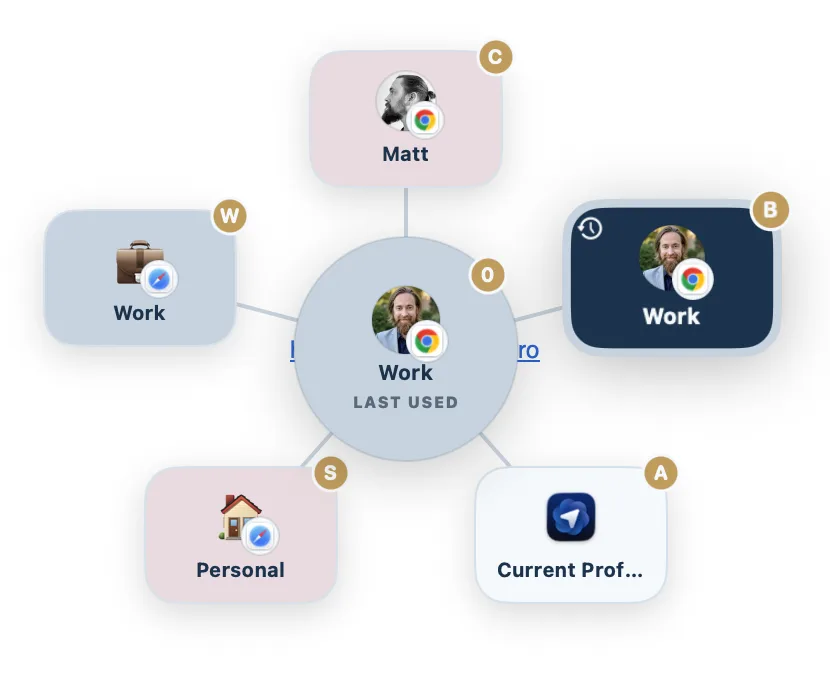
This is where a profile-aware link router earns its keep. Burly becomes the macOS handler for links and, on each click, lets you send the link to the precise profile it belongs in. Work invite goes to Work, personal receipt goes to Personal, and neither one pollutes the other.
Because the decision happens at click time, you do not have to remember which browser window is in front or which profile is active. You just pick the destination, and over time the common cases become a single keystroke. Burly discovers your profiles directly from Chrome, Safari, Firefox, and other Chromium browsers, so the choices always match your real setup.
A setup that holds up
Create one profile per context inside a single browser, color-code them, and let a router send each link where it belongs. That combination gives you genuine separation between work and personal without the constant copy-paste tax. It is the difference between profiles that look organized and profiles that actually stay organized.
Try Burly free
Route every link to the right browser profile in seconds. Native, private, and free. No account required.
Download for macOS