
How to Open External Links in a Specific Firefox Profile on Mac
Firefox sends links from other apps to its default profile, which you can change in about:profiles, but it has no documented setting for choosing a profile per link. To target a named profile you can launch Firefox with the -P flag, or put a browser chooser such as Burly in front of the click and pick the profile each time.
By Matt Senter, who builds Burly · · 5 min read
Matt Senter is an independent Mac developer who designs, builds, and ships small native apps end to end. He built Burly to send every link on his own Mac to the right browser profile, including Safari profiles that other routers cannot reach, and he writes these pages from that first-hand use.
Firefox profiles keep bookmarks, logins, history, and extensions completely separate, which makes them ideal for splitting work from personal, or a clean testing profile from your daily one. Opening them is easy. Getting a link from Mail, Slack, or the Terminal to land in the right one is not.
This guide covers how Firefox decides which profile receives external links, what changed with the newer profile manager, the command line route to a named profile on macOS, the lock error that trips it up, and the simpler option. For Safari and Chrome equivalents, start with the guide to browser profiles on a Mac.
Which Firefox profile do external links open in?
Links from other apps go to the profile Firefox treats as the default. In the long-standing profile system, that is the profile marked as default in Firefox's profiles.ini file (the entry with Default=1), and you can change it without editing files: type about:profiles into the address bar and click Set as default profile on the one you want.
That is a single global choice. Every external link goes to that one profile, whichever app it came from. There is no rule for "links from Slack go to Work" in the long-standing system.
- Open Firefox and type about:profiles in the address bar.
- Find the profile you want external links to use.
- Click Set as default profile.
- Quit Firefox completely, then click a link in another app to check where it lands.
Does the new Firefox profile manager change this?
Firefox now ships a friendlier profile manager, available to all desktop users since October 14, 2025 with Firefox 144 (Mozilla). You create and switch profiles from the Profiles item in the Firefox menu, and each one keeps its own bookmarks, logins, history, extensions, and theme.
What it did not add, as far as we can find, is a way to choose which profile receives links from other apps. Late in 2025 that was still a requested idea on Mozilla Connect, and at the time of writing there is no documented setting for it. If that changes, it will be the simplest fix for anyone who only needs one profile to receive every external link.
How do you open a URL in a named Firefox profile from the command line?
Firefox accepts a -P flag that launches it with a named profile, bypassing the profile manager, and a -new-window flag for the URL (Mozilla command line options). On a Mac you pass them through the open command. Assembled from those documented flags, a working form is:
open -na Firefox --args -P "Work" -new-window "https://example.com"
Replace Work with the exact profile name shown in about:profiles. You can wrap the line in a Shortcuts action, a Keyboard Maestro macro, or a shell alias. One honest caveat: -P is documented for classic profiles, and whether profiles created in the newer profile manager are addressable by name this way is something we have not been able to confirm. Test it with your own profiles before you build a workflow on it.
Why does Firefox say it is already running?
Firefox locks a profile while it is in use, so a second launch that asks for the same profile can fail with "Firefox is already running, but is not responding" (Mozilla Support). The fix is to quit every Firefox process, or, if one crashed, clear the stale lock, which on a Mac is the .parentlock file in the profile folder.
Running two Firefox profiles at the same time is normal, and each keeps its own windows. The lock only bites when two launches ask for the same profile, or when a crashed session leaves the lock behind, so if the error appears right after a crash, the stale lock is the first thing to check.
The -no-remote flag makes things worse for link opening, not better. It tells the new launch not to talk to a running Firefox at all, which lets you run two profiles side by side, but it also means the URL is not handed to the window you already have open. For routing links, leave it off.
When is the built-in approach enough?
If every external link should land in one Firefox profile, set it as the default in about:profiles and you are done. You do not need another app for that.
It stops working the moment different links belong in different profiles, or some belong in Firefox and others in Safari or Chrome. A single default cannot express that, and a command line only helps for links you can intercept yourself.
What is the simpler way to route links to Firefox profiles?
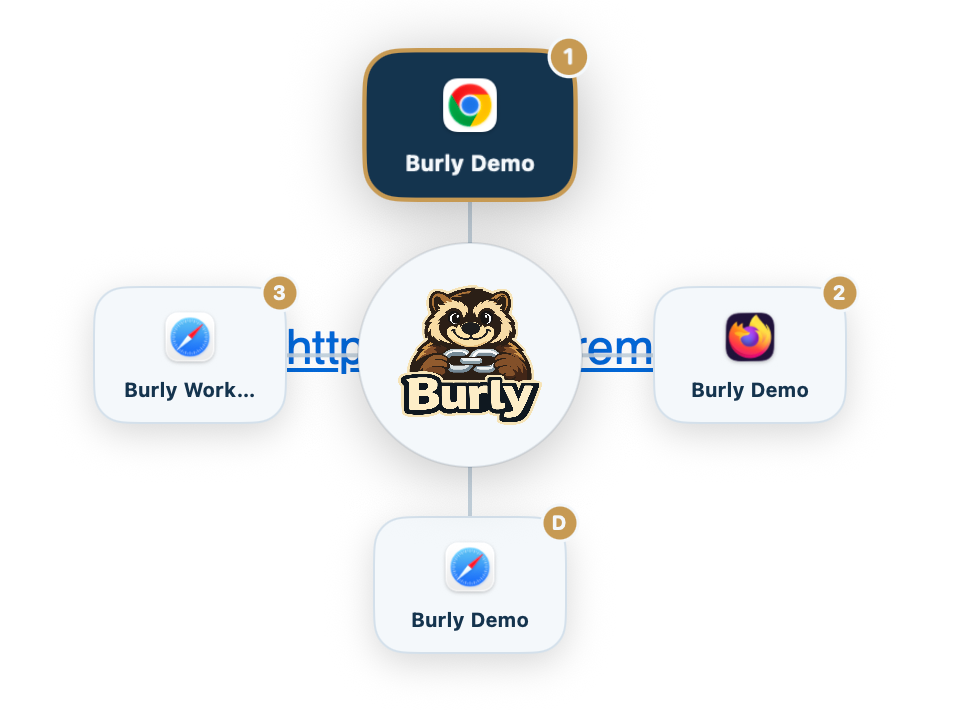
Let a link router catch the click and ask. Burly becomes your default browser, discovers your Firefox profiles, and shows each one as its own destination in a radial picker at your cursor, next to your Safari and Chrome profiles. Pick one, or press its key, and Burly launches Firefox with that profile by name, the same -P mechanism described above, with nothing to type.
It works with Firefox and its variants, including Firefox Developer Edition and Zen, as listed on the supported browsers page. Because the -P question is still open for profiles created in the new manager, check that each of your profiles appears in Burly's picker after you install it.
- Download Burly and move it to Applications.
- Set Burly as your default web browser in System Settings > Desktop & Dock.
- Open Burly once so it can read your installed browsers and their profiles.
- Click a link in any app and choose the Firefox profile it belongs in.
Try Burly free
Route every link to the right browser profile in seconds. Native, private, and free. No account required.
Download for macOS