
How to Open Links in a Specific Chrome Profile on Mac
Chrome opens a link clicked in another app in whichever profile you used last, and it has no setting to change that. To target one profile yourself, look up its folder name at chrome://version and launch Chrome with the profile directory flag, or let a profile-aware browser chooser such as Burly do that for every click.
By Matt Senter, who builds Burly · · 5 min read
Matt Senter is an independent Mac developer who designs, builds, and ships small native apps end to end. He built Burly to send every link on his own Mac to the right browser profile, including Safari profiles that other routers cannot reach, and he writes these pages from that first-hand use.
If you keep a work Chrome profile and a personal one, you have almost certainly watched a link from Slack or Mail open in the wrong one. It is not a glitch. Chrome sends links that arrive from other apps to whichever profile window was most recently in front, and Google's profile help describes no option for choosing a different destination.
This guide is about Chrome specifically: how Chrome identifies a profile under the hood, the command that opens a URL in a named profile, why the obvious version of that command fails, and how to make the whole thing automatic. For the same problem across every browser, see the guide to browser profiles on a Mac.
Why does Chrome open links in the wrong profile?
Chrome treats an incoming link as "open this in the Chrome window I am already using". When macOS hands it a URL, Chrome gives it to the most recently used profile, which is only the right one if you happened to be in it. There is no per-link choice and no per-app rule inside Chrome.
macOS cannot help either. System Settings lets you pick one default browser app, and it has no concept of a profile inside that app. So the decision falls to Chrome, and Chrome decides by recency.
How do you find a Chrome profile's folder name?
Chrome identifies each profile by the name of its folder on disk, not by the name you see in the profile menu. The first profile is usually called Default, and later ones are Profile 1, Profile 2, and so on, even if you renamed them Work and Personal long ago. The Chromium documentation on the user data directory explains that each profile is simply a subfolder of Chrome's data directory.
To see which folder belongs to which profile:
- Open a window in the profile you care about.
- Type chrome://version in the address bar and press Return.
- Find the line labelled Profile Path.
- Note the last part of that path, for example Default or Profile 2. That is the profile directory name.
- Repeat in each profile you want to target, and keep a note of which folder is which.
How do you open a URL in a specific Chrome profile from Terminal?
Once you know the folder name, you can ask Chrome to open a URL in that profile with its profile directory flag. On a Mac, the usual form uses the open command so that macOS finds the app for you:
open -na "Google Chrome" --args --profile-directory="Profile 1" "https://example.com"
Replace Profile 1 with the folder name you looked up, and the address with the page you want. The quotation marks matter: folder names like Profile 1 contain a space, and without quotes the shell splits them into two arguments and Chrome ignores the flag. The same flag works when you call Chrome's binary inside the app bundle directly, which is the form this guide by Brian Hogan documents.
If Chrome is already running, it does not start a second copy. The new launch passes the request to the Chrome that is open, and that Chrome opens the page in the profile you named. That is the behavior you want, so there is no need to quit Chrome first.
Why does the profile's display name not work?
Passing the name you see in the menu, such as --profile-directory="Work", is the most common mistake. Chrome looks for a folder called Work, does not find one, and either opens the page in another profile or creates a fresh, empty profile with that name. Either way the link does not land where you meant it to. The flag always wants the folder name from chrome://version.
Where does Chrome keep its profile folders on a Mac?
Chrome stores everything under your user Library, in Application Support, then Google, then Chrome. Inside that folder you will find Default, Profile 1, Profile 2, and so on, plus a file called Local State that records each profile's display name, the order they appear in, and which folder each one maps to. Chrome reads that file to draw the profile menu, which is why renaming a profile never changes its folder.
You do not need to edit anything in there, and you should not while Chrome is running. It is useful to know where it lives for one reason: if you are unsure which folder is which, the Profile Path line in chrome://version and the folder names in this directory will always agree.
Does the same command work in other Chromium browsers?
Mostly, yes. Browsers built on Chromium, such as Chrome Canary, Brave, Vivaldi, and Microsoft Edge, use the same folder layout and accept the same profile directory flag. Each keeps its own data directory, though, so you need to look up the folder in that browser's own version page, for example brave://version or edge://version, and use that app's name in the command.
There are exceptions worth knowing about. Some Mac users report that Edge ignores the flag when it is launched by hand while already running, and Edge also has its own setting for which profile receives external links. Both are covered in Brave, Edge, and Arc profiles on a Mac.
What if the command stops working?
Most failures come down to three things, and each has a quick check.
- The folder changed. If you deleted and recreated a profile, it may have a new folder number. Check chrome://version again and update your command.
- The quotes were lost. Scripts, shortcuts, and automation tools sometimes strip quotation marks. If the profile name has a space, make sure it reaches Chrome as a single argument.
- The wrong Chrome answered. Chrome Canary and Chromium keep separate data directories, so a folder name from one does not exist in the other. Make sure the app name in the command matches the browser whose chrome://version you checked.
Can you make every Chrome link open in the right profile automatically?
The Terminal command is fine for a bookmark or a script, but it does nothing for links you click in Slack, Mail, or a calendar invite, because those go straight to your default browser. To choose a profile for those, something has to sit between the click and Chrome, receive the link, and run the equivalent of that command with the right folder name.
That is what a link router is for, and it is exactly how Burly handles Chrome. It reads Chrome's own list of profiles, so it already knows that Work is Profile 2, and it launches Chrome with the right profile directory when you pick one. Nothing to look up and nothing to keep in sync when you add a profile.
- Download Burly and drag it to Applications.
- Open System Settings, then Desktop & Dock, and set Burly as your default web browser.
- Burly finds your Chrome profiles, and those in other Chromium browsers, on its own.
- Click any link and choose the Chrome profile from the picker, or press that profile's key.
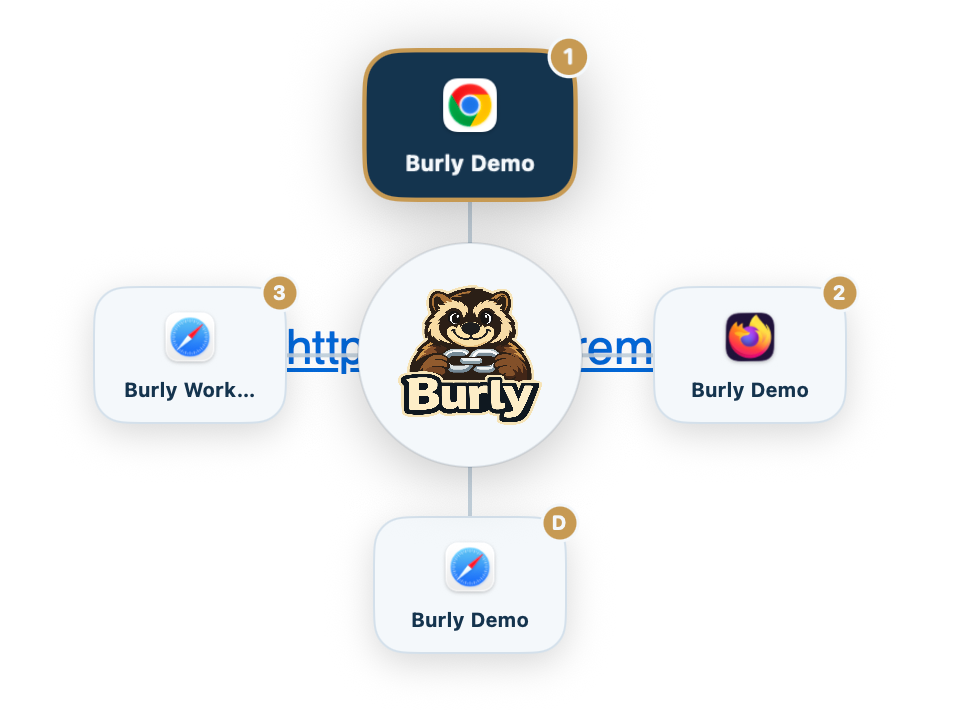
If most of your links belong in one profile, you can also pin it: set that profile as the destination in Burly's bypass settings and turn on Invert, and every link goes straight there unless you hold a key to choose. Always open links in one browser profile explains that setup. And if you run several Chrome profiles side by side all day, using multiple Chrome profiles at once covers the other half of the workflow.
Try Burly free
Route every link to the right browser profile in seconds. Native, private, and free. No account required.
Download for macOS