
Safari "Open Links With Profile" Not Working? Why, and How to Fix It
Safari's Open Links With Profile is a per-website rule that only applies to links opened from outside Safari, and only when Safari is your default browser. If the link is a redirect, the site was never configured, or the link started inside Safari, it falls back to the most recently used profile. When one rule per site is not enough, a browser picker that asks at click time is the fix.
By Matt Senter, who builds Burly · · 6 min read
Matt Senter is an independent Mac developer who designs, builds, and ships small native apps end to end. He built Burly to send every link on his own Mac to the right browser profile, including Safari profiles that other routers cannot reach, and he writes these pages from that first-hand use.
Safari profiles are a genuinely good way to split work and personal browsing on a Mac, and Apple added a setting that sounds like it finishes the job: Open Links With Profile. Pick a profile for a website, and links to that site should open there. Then you click a link in Mail or Slack, and it lands in Personal anyway.
The setting usually works exactly as designed. The trouble is that the design is narrower than its name suggests. This guide walks through what the setting actually covers, the seven reasons it appears broken, a checklist for setting it up so it holds, and what to use when a per-site rule is the wrong shape for how you work. For the bigger picture across Safari, Chrome, and Firefox, see the guide to browser profiles on a Mac.
What does Open Links With Profile actually do?
It assigns a website to a Safari profile, so that links to that website opened from another app go to that profile. Everything else still follows Safari's default, which Apple describes as opening links from outside Safari "in the profile used most recently" (Apple Support).
Apple is explicit that the feature "works only with links opened from outside of Safari, such as links in Mail, Messages, the Finder, or other apps." It lives under Safari > Settings > Websites, in the Open Links With Profile item in the sidebar, and it is keyed to the destination site. It is not a rule about which app the link came from, and it is not a general per-profile default (Apple Safari User Guide).
Why do links still open in the wrong Safari profile?
Almost every report of the setting "not working" traces back to one of seven causes. Work down the list in order; the first ones are the most common.
- Safari is not your default browser. The setting only acts on links macOS hands to Safari. If Chrome, another browser, or a link router is the default, Safari never sees the click. Check System Settings > Desktop & Dock > Default web browser.
- The link is a redirect or a shortener. Links from newsletters, chat apps, and marketing email often point at a tracking domain or a short link such as youtu.be, not the real site. The rule is matched against the site the link points at, so a rule for youtube.com does not catch a youtu.be link, and a rule for your company's app does not catch a click-tracking wrapper around it.
- The site was never actually configured. Apple's instructions start with visiting the website, then choosing a profile for it under Settings > Websites. If you set the rule for www.example.com but the link goes to app.example.com, check that the site you configured is the one the link really opens.
- The link started inside Safari. Clicking a link on a page, or opening a bookmark, stays in the current window's profile. The setting only governs links arriving from Mail, Messages, the Finder, and other apps.
- You need the rule to depend on context. A per-site rule cannot say "Google Docs from Slack goes to Work, but Google Docs from Messages goes to Personal." One site gets one profile, whatever app it came from.
- The site has no rule, so it follows the most recently used profile. Any site you have not configured goes to whichever profile you used last. If you were just in Personal, an unconfigured work link lands in Personal.
- The destination is not Safari at all. The setting cannot send a link to a Chrome or Firefox profile. If your work lives in Chrome, no Safari setting can route to it.
How do you set up Open Links With Profile correctly?
Configure it per site, from a window where the site is open, and test it from another app. It takes about a minute per site, and it is worth doing before you install anything.
- Make Safari your default web browser in System Settings > Desktop & Dock.
- In Safari, visit the website you want to route, using the exact address your links point to.
- Choose Safari > Settings, open the Websites tab, and select Open Links With Profile in the sidebar.
- Find the site in the list and choose the profile from its pop-up menu.
- Test it properly: paste the link into Notes or Messages and click it there, rather than clicking it inside Safari.
- Repeat for each domain your work links use, including any short-link or login domains they pass through.
A quick checklist before you give up on it
If the setting still misfires, run through these four checks. If all four pass, the setting is doing its job and the gap is in its design, not your configuration.
First, confirm Safari is the default browser. Second, open the link once and look at the address bar: is the final site the one you configured, or did a redirect change it? Third, confirm you clicked the link outside Safari. Fourth, ask whether the same site ever needs to go to two different profiles. If it does, no per-site rule will ever satisfy you.
When is the built-in setting enough?
If your work uses a small, stable set of domains, your links go straight to those domains, and all your profiles live in Safari, Open Links With Profile is enough. Use it, and you do not need another app.
It stops being enough when links arrive wrapped in redirects, when one site belongs in different profiles on different days, or when you keep Chrome or Firefox profiles alongside Safari ones. Those are the cases where choosing at the moment you click beats a rule you wrote in advance.
What is the alternative to a per-site rule?
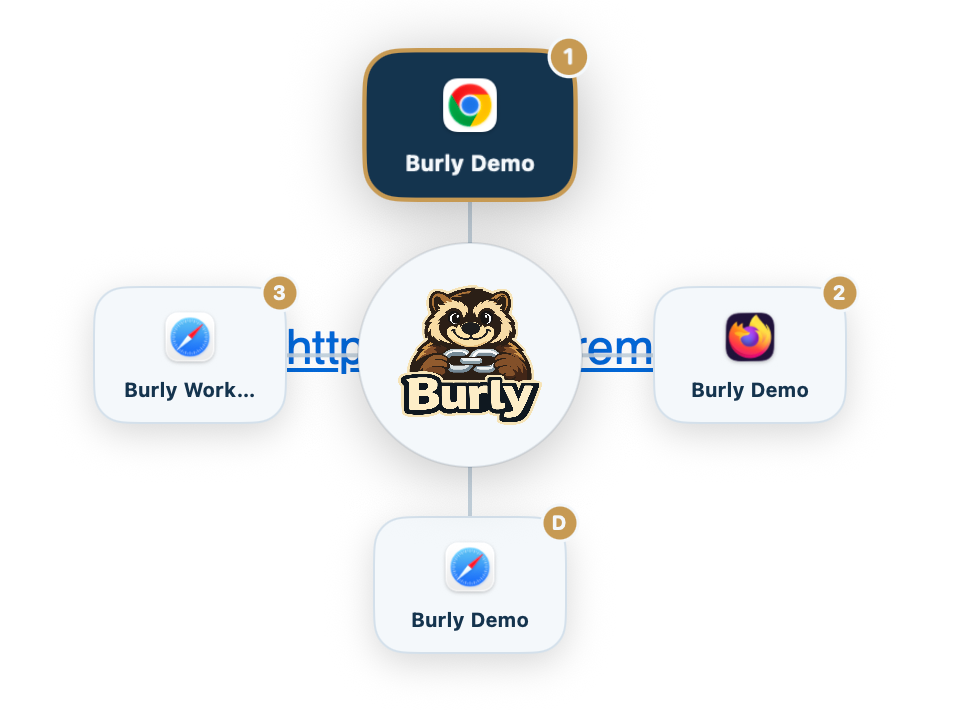
Put a Safari profile switcher in front of the click, so every link asks where it belongs. Burly becomes your default browser, receives each link before any browser does, and shows a radial picker with every Safari profile, and every Chrome and Firefox profile, as its own destination.
Because Burly sees the link before it resolves, redirects and short links do not matter: you choose the profile, and Burly opens that profile with the URL. Safari has no public way to launch a named profile, so Burly uses the macOS Accessibility API to press Safari's own New Window item for the profile you picked, then hands that window the link. That is why it needs the Accessibility permission, Safari running, and Safari's menus in English.
- Download Burly, move it to Applications, and grant Accessibility when macOS asks.
- Set Burly as your default web browser in System Settings > Desktop & Dock. You can leave your Open Links With Profile rules in place; they simply stop being consulted.
- Click any link and pick the Safari profile from the picker, or press that profile's key.
- If nearly every link belongs in one profile, pin it under What to open and turn on Invert, so links go straight there and the picker appears only when you hold your modifier. The walkthrough is in always open links in one browser profile.
The short version
Open Links With Profile is a per-site rule for links from outside Safari, and it only fires when Safari is the default browser and the link goes straight to the configured site. Set it up carefully and it covers simple cases well. When it cannot, because of redirects, context, or profiles in other browsers, pick the profile at click time instead.
Try Burly free
Route every link to the right browser profile in seconds. Native, private, and free. No account required.
Download for macOS