
How to Use Multiple Chrome Profiles at Once on a Mac
Chrome lets every profile run at the same time, each in its own windows with its own name, color, and photo. Switch between them from the Profiles menu in the Mac menu bar or with Command+Shift+M, and use a browser picker if you want links from other apps to land in the right one.
By Matt Senter, who builds Burly · · 5 min read
Matt Senter is an independent Mac developer who designs, builds, and ships small native apps end to end. He built Burly to send every link on his own Mac to the right browser profile, including Safari profiles that other routers cannot reach, and he writes these pages from that first-hand use.
Running two or three Chrome profiles at once is normal now: a work profile signed in to the company account, a personal one with your own email and shopping, maybe a third for a client or a side project. Chrome handles this well, since every profile can have windows open at the same time. What takes some setup is telling the windows apart at a glance, switching between them quickly, and making sure new links end up in the right place.
This guide covers the Chrome side of that on a Mac. For the bigger picture across Safari, Firefox, Edge, and Arc, see the guide to browser profiles on a Mac.
Can you have more than one Chrome profile open at the same time?
Yes. Each Chrome profile opens in its own windows, and you can have windows from several profiles open side by side, each with its own logins, history, bookmarks, and extensions. Closing one profile's windows does not affect the others.
To add a profile, click the profile button at the top right of a Chrome window and choose to add a new one. Chrome asks for a name, lets you pick a photo, and offers a color scheme, all described in Google's help page on Chrome profiles. You can change any of those later from Manage Chrome profiles.
How do you tell Chrome profile windows apart?
The color scheme does most of the work. Give each profile a clearly different color, not two shades of blue, and the whole window frame tells you where you are before you read a word. The profile photo in the toolbar is the second cue, and the profile name shows when you click it.
Pick colors and names that match how you think about the profiles. Work in a muted gray, Personal in green, a client in orange. The goal is to never have to check. If you want the same cues outside Chrome, Burly lets you give each profile an emoji or account photo and a color in its picker, which is covered in customizing browser profiles with an emoji, a color, and a hotkey.
What is the fastest way to switch Chrome profiles on a Mac?
On a Mac, Chrome adds a Profiles menu to the menu bar at the top of the screen, which lists every profile and opens a window in the one you choose. That menu is the quickest mouse route, because it is always in the same place no matter which window is in front.
From the keyboard, Command+Shift+M opens the profile menu for switching people, according to Chrome's list of keyboard shortcuts. From there you can pick a profile with the arrow keys.
- Profiles menu in the Mac menu bar: choose a profile to open a window in it.
- Profile button in the toolbar: click it and pick another profile.
- Command+Shift+M: open the profile menu from the keyboard.
- Window menu: jump to an already open window from any profile.
Can you make a desktop shortcut for a Chrome profile on a Mac?
Not from inside Chrome. On Windows, Chrome's profile settings offer a desktop shortcut that opens straight into one profile, but that option does not exist on the Mac, as this BrowserHow guide notes.
There are two workarounds. The first is a small script or Shortcuts action that runs Chrome with its profile directory flag, which opening links in a specific Chrome profile explains, including how to find the right folder name. The second is a global hotkey. Burly gives every profile its own system-wide shortcut, so a key combination opens a new tab in Chrome Work from any app, with no script to maintain. Opening a browser profile with a keyboard shortcut covers that setup.
Which Chrome profile gets links from other apps?
Whichever one you used most recently. When you click a link in Slack or Mail, Chrome hands it to the last active profile, and there is no Chrome setting to name a different one. With a single profile that never matters. With three running at once, it means roughly every link has a chance of landing in the wrong place.
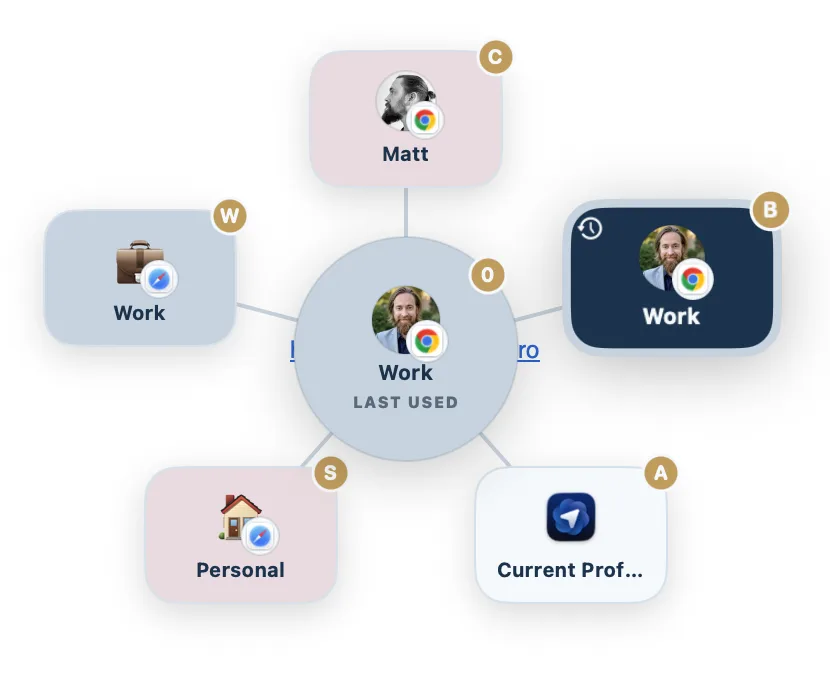
The fix is to decide per link rather than letting recency decide. A profile-aware browser chooser becomes your default browser, receives every link first, and opens the Chrome profile you pick. Burly does this with a radial picker under your cursor, a key for each profile, and an option to send everything to one pinned profile unless you hold a modifier. It also covers Safari and Firefox profiles, if not all of yours live in Chrome.
What do Chrome profiles share, and what do they keep separate?
Almost nothing is shared. Each profile has its own cookies and logins, its own history, its own bookmarks, its own extensions and their settings, and its own saved passwords and autofill. If you sign a profile in to a Google account, that profile syncs with that account only. That separation is the whole point, and it is why two profiles can be signed in to two different accounts on the same site at the same time.
What the profiles do share is the Chrome app itself: one installation, one version, and one set of updates. And because every profile is running inside the same Chrome, quitting Chrome closes all of them at once.
How many Chrome profiles should you keep open?
As many as you can tell apart without thinking, and usually no more than three or four in daily use. Every open profile adds windows to switch between and another place a link might land. If you keep a profile only for occasional tasks, close its windows when you are done, and it will still be there in the Profiles menu when you need it.
If a profile exists only to keep a few logins separate for one client or one project, consider whether a different browser would serve that better. Putting that work in Safari or Firefox gives it a completely different window style, which some people find easier to keep apart than a fourth Chrome color.
What setup works best with several Chrome profiles?
Give each profile a distinct color and a short name. Use the Profiles menu or Command+Shift+M to switch when you are already in Chrome. Use a global hotkey to jump into a profile from anywhere else. And let a picker handle links from other apps, so the profile you are looking at is never an accident.
Try Burly free
Route every link to the right browser profile in seconds. Native, private, and free. No account required.
Download for macOS