
How to Change Your Default Browser on macOS (and a Smarter Alternative)
Open System Settings, go to Desktop & Dock, and choose the Default web browser. That setting picks one app for every http and https click, not a profile. If you keep separate work and personal profiles, point the default at a Mac link router instead of a single browser so each link can still land in the right profile.
By Matt Senter, who builds Burly · · 4 min read
Matt Senter is an independent Mac developer who designs, builds, and ships small native apps end to end. He built Burly to send every link on his own Mac to the right browser profile, including Safari profiles that other routers cannot reach, and he writes these pages from that first-hand use.
Changing your default browser on a Mac takes about ten seconds, but the setting controls more than people realize, and for a lot of workflows a single default is the wrong tool entirely. Here is how to change it, what it actually does, and when you want something better.
How to change the default browser on macOS
Changing the default takes about ten seconds. Every http and https link clicked outside a browser, in Mail, Messages, Slack, or a PDF, will then open in the app you choose.
- Open System Settings from the Apple menu.
- Click Desktop & Dock in the sidebar.
- Scroll to the Default web browser dropdown.
- Choose the browser you want to handle every link.
On older macOS versions the same setting lived inside the General pane, and some browsers also offer to make themselves default the first time you launch them. They all change the same underlying Launch Services registration.
What the default actually controls
The default browser setting picks one application. It does not pick a profile, and it does not vary by where the link came from. Whatever you choose receives every link, and that link lands in whichever profile is currently active in that browser.
For a single-profile, single-purpose machine that is fine. The moment you keep separate profiles for work and personal, or juggle two Chrome installs, one default stops being enough. You can change the default all day and still have links open in the wrong place, because the wrong place is a profile, not an app.
When a router beats a default
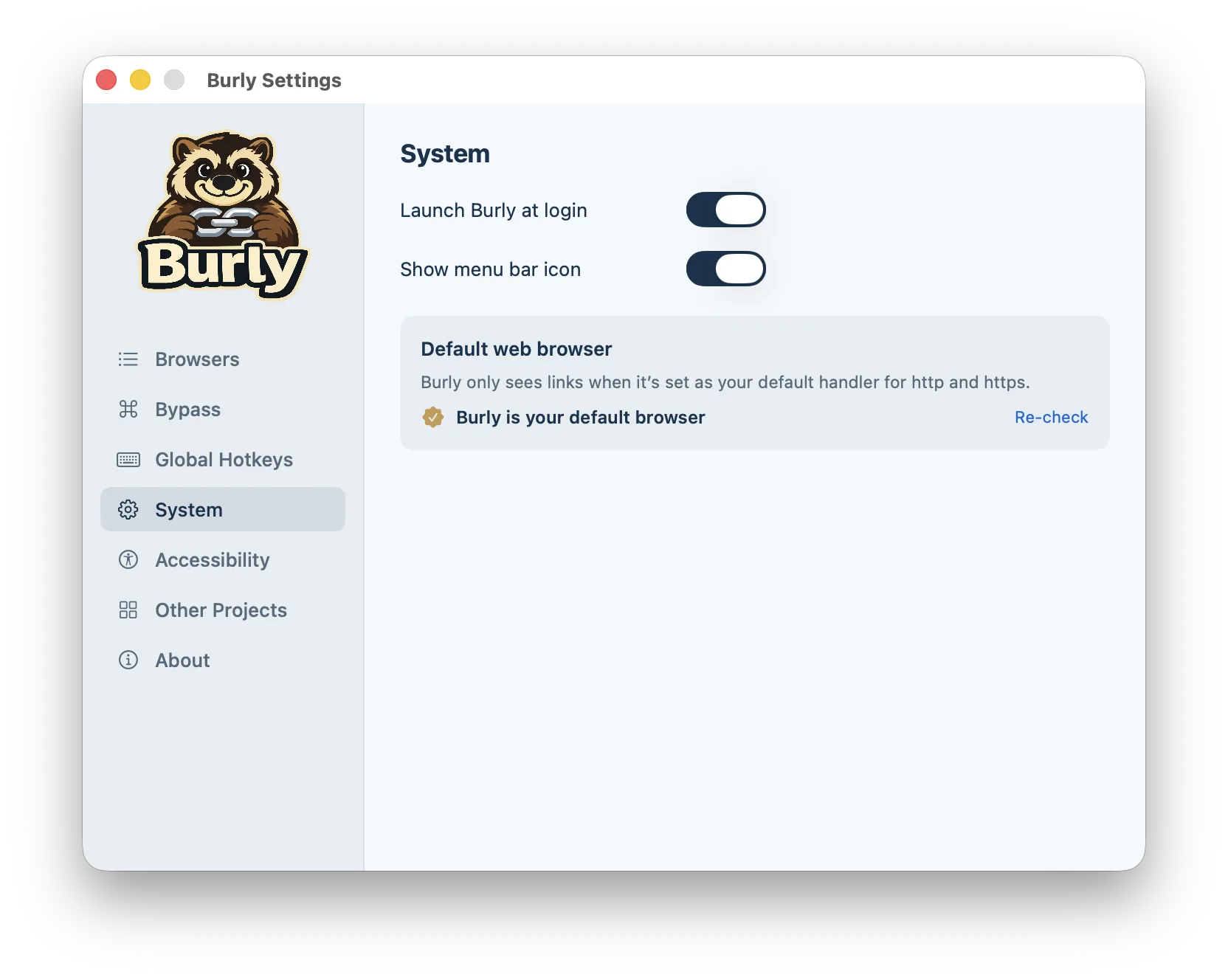
Instead of choosing one browser to receive everything, you can set the default to a small link router that decides per link. Burly registers as the default handler, then on each click lets you choose the exact browser profile to open in. The setting in System Settings still points at one app, Burly, but Burly hands the link onward to Work, Personal, a Firefox profile, or a separate Chrome install as you direct. If you are comparing that approach to rule-based routers, the macOS link router comparisons lay out price, profile support, and picker style for each option.
This keeps the simplicity of having a default while removing its biggest limitation. You get one place that catches every link and an instant choice of where it should really go, all without copying URLs between windows.
Bottom line
Set your default browser in System Settings under Desktop and Dock. If you only need one browser and one profile, you are done. If you live across multiple profiles, point the default at a link router like Burly so every click can land in the right profile instead of just the right app.
Try Burly free
Route every link to the right browser profile in seconds. Native, private, and free. No account required.
Download for macOS